 Glyphfield
Effect layers
Process every layer beneath a Design Lab Effect layer with a built-in converter or a Shaders.com image effect, and export the result as a still or motion file.
An Effect layer in Design Lab, the layered composition tool, processes the composited image of every visible layer beneath it in the same artboard. It has no content of its own. It runs one of four built-in converters or one of the Shaders.com image effects. /api/materials lists the image effects under imageEffects, and there are 97 in seven groups.
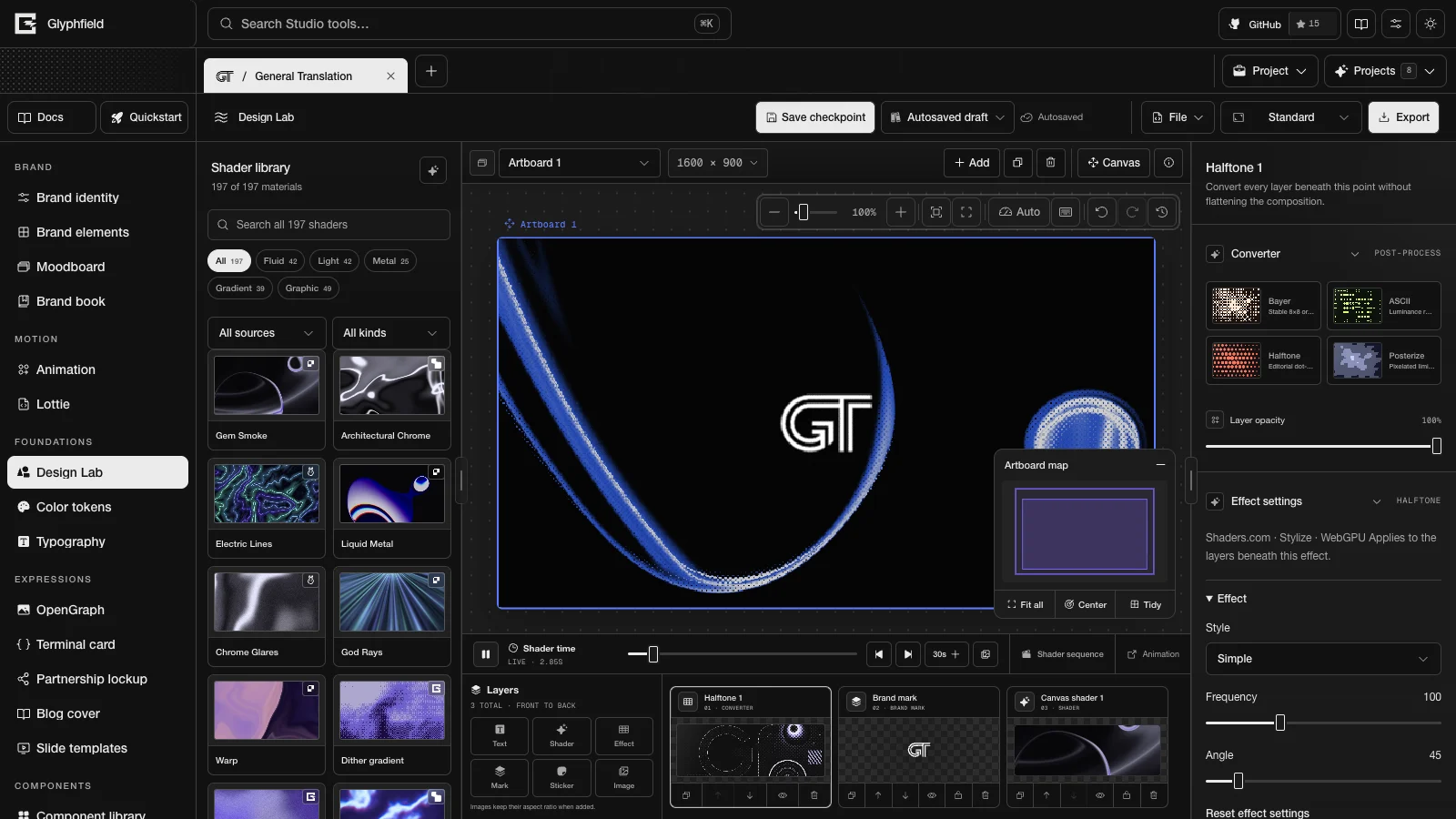
Add an Effect layer
Choose Effect in the layer dock, press E, or call design.effects.add. The new layer is placed in front of every other layer of the active artboard and covers the full artboard. An Effect layer processes only the layers behind it, so move it down the stack to process fewer layers.
Effect layers belong to an artboard. On the loose canvas the Effect button is disabled and E shows the message "Frame your selection to apply composition-wide effects". Effect layers cannot be locked, aligned, distributed, rotated, or used to copy and paste style. Choosing a converter type or an image effect renames the layer after that converter or effect.
Built-in converters
Select an Effect layer and choose a Converter type:
| Converter | Result |
|---|---|
| Bayer | Stable 8×8 ordered print texture |
| ASCII | Luminance rebuilt from glyph density |
| Halftone | Editorial dot-screen conversion |
| Posterize | Pixelated limited-tone color field |
| Control | Range |
|---|---|
| Cell size | 1–28 px. ASCII starts at 7 and Halftone at 4 |
| Contrast | 0.4–2.4 |
| Brightness | 0–1 (the luminance threshold) |
| Tone count | 2–8 (Posterize only) |
| Foreground, Background | Colors |
| Invert luminance | On or off |
| Layer opacity | 0–100% |
The foreground and background colors are explicit, so a converted field does not become transparent. Converter previews render at up to 640 px wide. When a preview frame takes longer than 14 ms on average, the preview first narrows toward 360 px and then drops to 30 frames per second. It returns to full rate and width when frames are fast again.
Image effects
With an Effect layer selected, the Image effects section of the inspector lists the Shaders.com image effects with static thumbnails. Search image effects matches every typed word against each effect's name, description, and group. The groups appear in this order:
| Group | Count | Examples |
|---|---|---|
| Stylize | 30 | Engraving, Halftone, Ascii, Dither, Gradient Map, Chalkboard, CRTScreen, Watercolor, Light Leak, Particle Field, VHS, Glitch, Paper, Film Grain, Vignette, Drop Shadow |
| Blurs | 9 | Bokeh Blur, Progressive Blur, Tilt Shift, Zoom Blur, Angular Blur |
| Distortions | 22 | Fluted Glass, Glass Tiles, Kaleidoscope, Spherize, Twirl, Wave Distortion, Polar Coordinates, Mirror, Perspective |
| Adjustments | 14 | Film Stock, Duotone, Tritone, Posterize, Solarize, Grayscale, Hue Shift, Exposure, Sharpness |
| Transitions | 13 | Page Peel, Ripple Wipe, Noise Dissolve, Iris Wipe, Venetian Blinds, Barn Doors |
| Interactive | 6 | Shatter, Pixel Sort, Cursor Ripples, Grid Distortion, Liquify, Pixel Throw |
| Shape Effects | 3 | Glass, Crystal, Emboss |
Choosing an effect replaces the layer's converter output with that effect. Effect settings then shows the effect's own controls: colors, numeric ranges, positions, switches, and choices. Effect colors start from the identity's material palette (ink, accent, and highlight), which are the same three colors a new shader layer starts with. A color set in Effect settings replaces the palette color and is saved in effectProps. Colors that were not set follow the identity. Reset effect settings returns every setting to its default. Converter type switches the layer back to a built-in converter.
Preview
The canvas preview composites the layers beneath the effect at preview size, at most 640 px wide, and runs the effect on that image. While anything beneath the effect moves, the preview updates at up to 10 frames per second, and converters in the same stack follow that rate. When the canvas is paused, the preview redraws only when something changes.
Export
An export composites the layers beneath each image effect at the full output size, runs the effect, then composites the result with the layers above it. A PNG or JPG passes the current shader time to the effect. GIF and MP4 run the effect for every frame and pass each frame's time, so effects that change over time move with the clip. If an effect fails during export, the export stops with an error that names the layer and suggests hiding it.
WebGPU requirement
Image effects run on WebGPU. When the browser has no WebGPU:
- The canvas shows the layers beneath the effect unchanged.
- A notice on the artboard reads "Image effect needs WebGPU", and the inspector explains that exports need WebGPU too.
- Still and motion exports stop with an error that names the layer. Hide the layer to export without it.
When an effect fails to render for another reason, the artboard notice reads "Image effect could not render". design.effects.describe reports each image effect layer's status as loading, ready, unsupported, or error.
Source format
An Effect layer is a CanvasDocument element of kind effect. Its bounds are the artboard's width and height in pixels. Its settings keeps the converter fields: kind, cell size, contrast, threshold, levels, the foreground and background colors, and inversion. The layer's opacity is stored on the element. An image effect adds effectId and effectProps. effectProps holds the values that were set explicitly and follows the effect's nativeControls from /api/materials. sourceImage is not accepted, because the layers beneath are the source. Older documents that used an image effect as a shader layer still load and render.
Browser API
The Browser API (window.glyphfield.studio) has three Effect layer actions:
| Action | Input | Output |
|---|---|---|
design.effects.describe | None | { builtIn, imageEffects: { categories, effects, controls }, layers }. layers lists the active artboard's Effect layers back to front with id, name, opacity, visible, and either kind or effectId and effectProps. An image effect adds status once it has rendered or failed |
design.effects.add | { kind?: 'bayer' | 'ascii' | 'halftone' | 'posterize', effectId?, effectProps?, opacity?: 0..1 } | { layerId } |
design.effects.configure | { layerId, kind?, effectId?, effectProps?, opacity? }. kind and effectId cannot be combined, and effectProps: {} resets the settings | { layerId } |
effectProps is validated against the effect's nativeControls. design.effects.add fails on the loose canvas. Setting kind resets the converter settings to that converter's defaults.
const studio = window.glyphfield.studio;
const { layerId } = await studio.invoke('design.effects.add', {
  effectId: 'shader-effects-engraving',
  effectProps: { inkColor: '#070707', paperColor: '#F4F4F2' },
});
const { layers } = await studio.invoke('design.effects.describe');
const layer = layers.find((entry) => entry.id === layerId);
if (layer?.status === 'unsupported') throw new Error('This browser has no WebGPU.');
Limits and requirements
- Image effects need WebGPU in the preview and in every export.
- The image effect preview runs at up to 10 frames per second and at most 640 px wide. Exports run at the full output size.
- Effect layers cannot be placed on the loose canvas.
Layers and editing
Add and edit every kind of Design Lab layer, format parts of a text box, crop images, and rotate, align, lock, or copy the style of selected layers.
Shaders and time
Tune Design Lab shader layers and the live preview quality, pick and capture exact shader frames, and build sequences that cut between several shaders.