 Glyphfield
Source code editing
Read, edit and apply the JSON source document of any Studio tool in the source drawer or through the Browser API without breaking its layers or assets.
Every Studio tool keeps a JSON source document behind its visual controls. File → Edit source code opens that document in a drawer beside the canvas. The Browser API (window.glyphfield.studio) reads and applies the same document with readSource() and applySource(). A valid edit updates the state that the inspector, the canvas, autosave and export use. An invalid edit changes nothing.
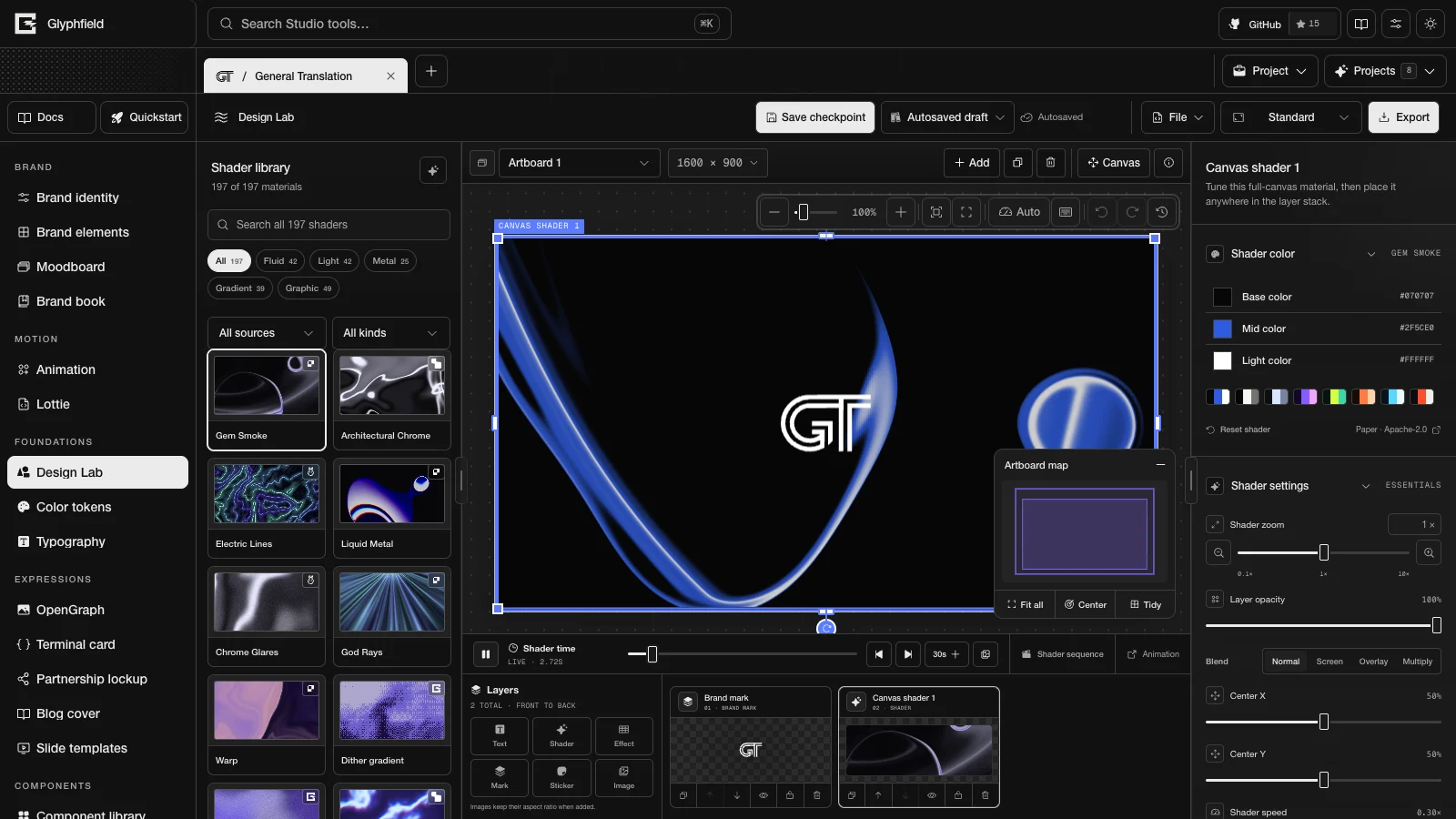
Source drawer
Edit source code is disabled while a tool is still preparing its source. The source editor loads the first time you open a drawer, so the drawer appears after a short delay on that first open. Later drawers open at once.
- Choose File → Edit source code.
- Edit the JSON.
- Choose Apply code, or press ⌘/Ctrl + Enter or ⌘/Ctrl + S.
- Read any error in the drawer. An error leaves the artifact unchanged.
- Check the canvas, then continue visually, save or export.
| Control | Action |
|---|---|
| Apply code | Validate and apply the draft. The button is disabled while the JSON does not parse, and it reads Applied after a successful apply |
| Reset | Replace the draft with the current source of the tool |
| Copy | Copy the draft to the clipboard |
| Format (Shift + Alt + F) | Reformat the JSON |
| Find and replace (⌘/Ctrl + F) | Open the find bar. Enter and Shift + Enter step through matches, as do Previous match and Next match. Replace changes the current match and All changes every match |
| Clean paste | Appears when the draft contains rich-text spaces, and replaces them with standard JSON spaces |
| Jump to top-level section | Move the cursor to a top-level key |
| Close source editor (Escape) | Close the drawer. When the find bar is open, Escape closes the find bar first |
The editor indents with Tab and outdents with Shift + Tab, keeps the indentation on Enter, and inserts the closing bracket or quote when you type an opening one. Pasted text has its rich-text spaces replaced automatically. The toolbar shows the cursor line and column, the line count and the size of the draft. Drag Resize source code editor to set the drawer width from 360 to 880 px. You can also focus the handle and use the arrow keys or Home and End. Shift + arrow moves in larger steps. This browser remembers the width.
Browser API
const studio = window.glyphfield.studio;
const { source, toolId } = studio.describe();
if (!source.read || !source.apply) throw new Error(`${toolId} does not expose source.`);

const current = JSON.parse(studio.readSource());
// Change only the intended fields and keep every unknown field.
await studio.applySource(current);
const after = JSON.parse(studio.readSource());
applySource accepts a JSON string or an object. It resolves after the tool accepts the document and two animation frames pass. Image decoding, font loading, shader compilation and encoding can take longer, so wait for the preview before you capture it. The source adapter is registered while the tool is active, even when the drawer is closed.
Source documents by tool
| Tool | Document |
|---|---|
| Brand identity | The complete BrandIdentity |
| Brand elements | glyphfield.brand-element version 2: elementId and the settings that differ from the identity defaults |
| Moodboard | glyphfield.moodboard version 2: boards, tiles and export settings |
| Brand book | glyphfield.brand-book version 1: section order and visibility, and the visibility, layout, surface, image and copy of each page |
| Animation | CanvasDocument schema 2 with metadata.tool: "animation-studio" and the sequence in metadata.animation |
| Lottie | CanvasDocument schema 2 with the Lottie state in metadata.studio. Raw Lottie JSON can also be pasted |
| Design Lab | CanvasDocument schema 2 with Design Lab metadata source version 4 |
| OpenGraph, Terminal card, Partnership lockup, Blog cover, Slide templates | CanvasDocument schema 2 with expression source version 2, with one page per artboard or slide |
| Color tokens | Version 2: palette, colorPairings, colorSystem and the opacity of each token |
| Typography | Version 2: type roles, typeScale and specimen settings |
| Component library | Version 2: pattern, content, system, palette, typography, theme and code format |
The source format reference lists the fields and validation rules of each document.
Safe edits
readSource() returns the current, migrated document with stable IDs, asset references, layer order, saved frame and timeline values, and tool metadata. Examples leave out fields that later versions add, so an edit that starts from the current source keeps marks in place, keeps the layer order and keeps newer settings.
- Start from the document that
readSource()returns. Do not build a CanvasDocument from an old example. - Keep element IDs when you change content or style.
- Keep unknown fields, metadata and assets.
- Change state through
applySource()or the visible controls. Writing tolocalStorageor IndexedDB directly skips validation. - Apply a document only to the tool it came from. Expression tools reject a document of another tool or kind.
- Check the canvas or an export after you apply. A successful apply confirms that the document is valid. It does not show how the document renders.
Source and generation requests
POST /api/generate takes a short, versioned request and returns an artifact or a document ready to apply. A source drawer document holds the full state of one open tool and is not a valid generation request. The design-sequence response connects the two: it contains a Design Lab document that you apply with Design Lab open.
const generated = await fetch('/api/generate', {
  method: 'POST',
  headers: { 'Content-Type': 'application/json' },
  body: JSON.stringify({
    kind: 'design-sequence',
    identity: { preset: 'gt' },
    shader: { materialId: 'paper-gem-smoke' },
    sequence: { cutCount: 10, finalHoldMs: 5000, pace: 'accelerating' },
  }),
}).then((response) => response.json());

await window.glyphfield.studio.applySource(generated.document);
To share Design Lab and Animation work as files, use project files. See also the Studio Browser API and Agent recipes.
Component library
Build 36 product components from the brand tokens, review every state in light and dark mode, and copy their code as React with Tailwind or HTML with CSS.
Project files
Share and reopen an editable Design Lab or Animation workspace as one .glyphfield.json file with its artboards, images, fonts and saved shader frames.