 Glyphfield
Animation
Sequence text, logo, and image scenes with keyframes, text entrances, and transitions, add audio, and export GIF, MP4, a PNG poster, or a project file.
Animation (tool ID animation) is a sequence editor for brand motion. Each scene holds one layer (text, the brand mark, or an image) over a background. Each scene has its own hold duration, outgoing transition, pose and keyframes, and an optional text entrance and caption. Scenes share the base background unless a scene has its own.
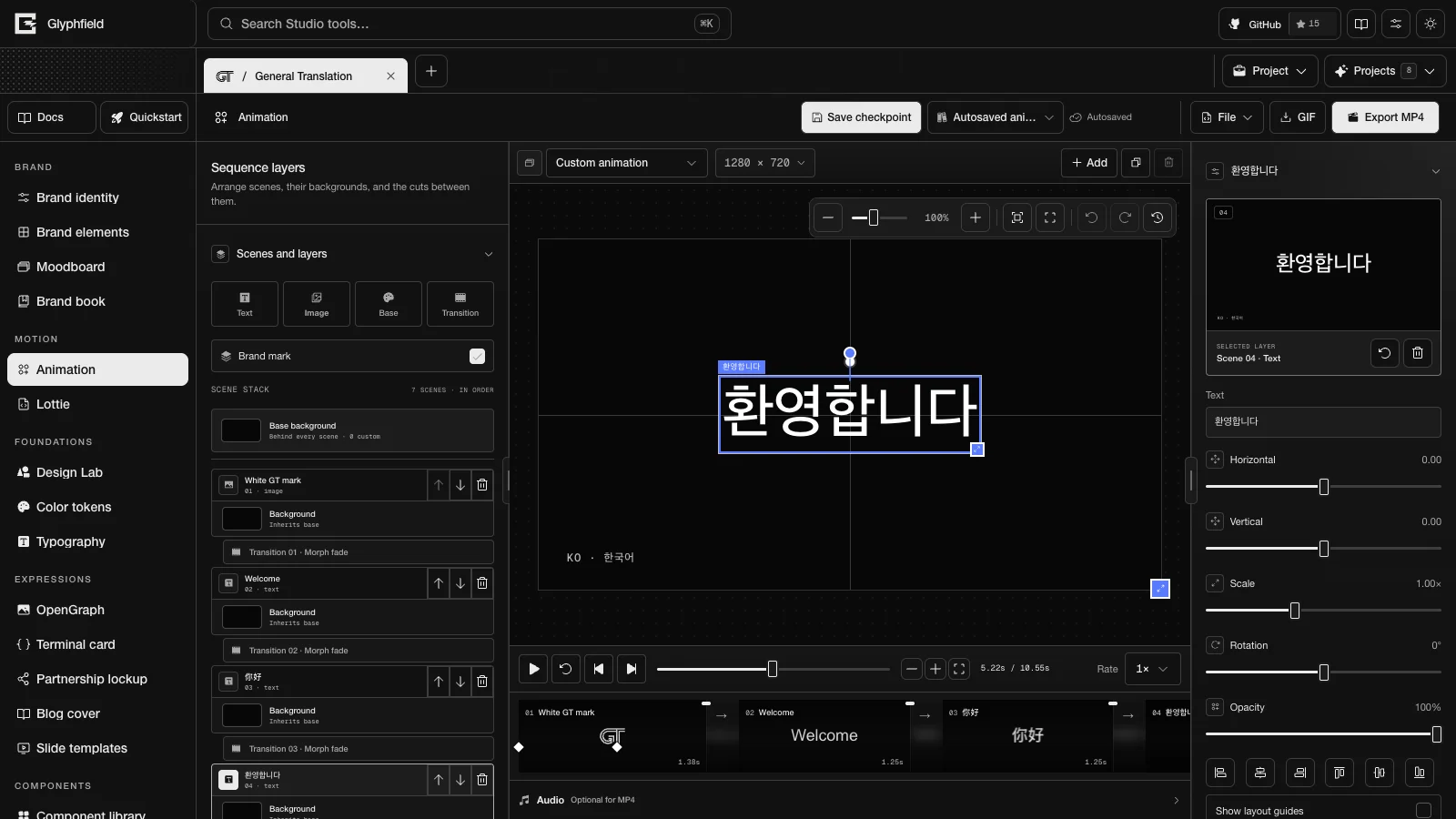
Layout
| Region | Contents |
|---|---|
| Tool header | Save checkpoint, Saved animations, the save status, File (Edit source code, Open project file, Download project file, Export poster frame), GIF, and Export MP4 |
| Left sidebar | 01 Scenes and layers, 02 Sequence defaults, 03 Output, 04 Brand starters |
| Center | The artboard bar, the canvas with size handles, the transport and storyboard, and the audio track |
| Right inspector | The selected scene, transition, or background, or "Nothing selected" |
Brand starters
A first visit opens on the identity's Brand intro. Brand starters offers three sequences for every identity. Each is composed in that identity's art direction on a 1280 × 720 artboard:
| Starter | ID | Scenes |
|---|---|---|
| Brand intro | brand-intro | The mark, then up to six greetings |
| Product reel | product-reel | Up to four products, then the mark |
| Proof points | proof-points | Up to three proof points, then the mark |
Each identity keeps its own field, type, accent, cadence, and captions. The General Translation intro holds each scene for 1.25 seconds, morphs between centered words on black, and names each language in the corner. Display weight and tracking come from the identity's Display role, and captions use its Code face. Applying a starter replaces the active artboard, clears imported images, and resizes the artboard to 1280 × 720. Undo restores the previous sequence. Loading a starter does not replace saved drafts.
Scenes and layers
Add animation layer has Text, Image (one or more local image files), Base (the base background), and Transition. The Brand mark checkbox includes or removes the mark scene. Each scene row has Move <scene> up, Move <scene> down, and Remove <scene>. Rows labelled Transition NN · <package> sit between scenes. Source order, timeline order, preview, and export stay in sync.
New text scenes start black in light mode and white in dark mode, including scenes added through the Browser API. The color is saved on the scene, so changing the Studio theme does not recolor existing scenes, images, or backgrounds.
Sequence defaults and output
| Control | Range or values |
|---|---|
| Frame duration | 100–3000 ms, with buttons for 0.75, 1.0, 1.25, 1.5, and 1.75 s |
| Default transition | One of the 12 transition packages. Type / delete is hidden while the sequence has an image scene |
| Default background blend | Crossfade, Directional wipe, Radial reveal |
| Transition duration | 40–1200 ms |
| Horizontal anchor, Vertical anchor | −1 to 1 |
| Scale | 0.2–1.5 |
| Morph blur | 0–32 px |
| Text size | 16–240 px |
| Default foreground | Color |
| Frame rate (Output) | 10, 15, 20, 24, or 30 FPS |
| Palette (Output) | 32, 64, 128, or 256 GIF colors |
| Loop forever (Output) | The GIF loop flag |
Scenes without their own values follow these defaults.
Edit a scene
Select a scene on the storyboard or in the scene list. Selecting a scene pauses playback and moves the playhead to the point where the scene looks finished, after its entrance and last keyframe. The inspector shows:
| Section | Controls |
|---|---|
| Content | Text, or Image fit (Contain or Cover) for images. Reset selected frame and Remove selected layer |
| Pose | Horizontal and Vertical −1 to 1, Scale 0.1–2.5, Rotation −180° to 180°, Opacity 0–100% |
| Align | Align layer left, Align layer to horizontal center, Align layer right, Align layer top, Align layer to vertical middle, Align layer bottom (to the safe area, 8% of the shorter side), and Show layout guides |
| Type | Anchor (Centre or Leading edge), Text size, Weight 100–550, Text color |
| Caption | Text scenes: up to 120 characters at the top-left, top-right, bottom-left, or bottom-right |
| Timing | Scene duration 100–10,000 ms |
| Text entrance | Text scenes: a preset, Entrance duration 100–3000 ms, Stagger 0–300 ms (0 is Auto, shown for Word rise and Glyph stagger), and Entrance easing (hidden for Type on) |
| Keyframes | Motion presets, Add keyframe at playhead, Clear keyframes, and one row per keyframe with its time, easing, Go to keyframe N, and Remove keyframe N |
| Effects | Text effects for text scenes, or Artwork effects for image and mark scenes |
On the canvas:
- Drag to move. Moves snap to the canvas edges and center lines. Arrow keys nudge 1 px, or 10 px with Shift.
- Drag the round handle above the layer to rotate. Shift snaps to 15°. With the handle focused, ← and → rotate by 1°, or 15° with Shift.
- Show layout guides shows the thirds and the safe area. Guides do not appear in exports.
- Anchor sets whether text hangs from its center or its leading edge. A leading-edge anchor keeps a left-aligned headline on its margin when the words change.
- A caption is one small line of scene metadata, such as an index, a language name, or a command. It is set in the Code face at a corner of the safe area. Captions stay in place and exchange by opacity during transitions.
Dragging, scaling, and rotating on the canvas update the same scene data as the inspector. The layer follows a drag live and commits once on release.
Keyframes
Keyframes animate the layer's horizontal and vertical position, scale, rotation, and opacity across the hold. Each keyframe stores a full pose and the easing of the segment that leaves it: Material, Ease out, Ease in-out, Overshoot, or Linear.
- Select the scene and choose Add keyframe at playhead.
- Move the playhead within the scene, then move, scale, or rotate the layer. Once a layer has keyframes, an edit updates the keyframe at the playhead or inserts one there.
- Set each keyframe's easing in the keyframe list.
Keyframes appear as diamonds on the storyboard. Drag a diamond to retime it. A focused diamond moves one frame with ← or →, or ten frames with Shift, and Delete or Backspace removes it. Removing the last keyframe keeps its pose as the static pose. Before the first keyframe and after the last, the nearest pose holds. During a transition the outgoing scene leaves from its last pose and the incoming scene enters from its first.
Motion presets replace the keyframes with a preset built around the settled pose:
| Preset | Motion |
|---|---|
| Push in | Scales up by 1.06× across the hold |
| Rise in | Starts 0.14 lower and transparent |
| Slide in | Starts 0.22 to the left |
| Pop in | Grows from 82% scale within 520 ms |
| Float | Drifts slightly at mid-hold |
Text entrances
| Entrance | Behavior |
|---|---|
| Type on | Graphemes appear one at a time, without a cursor |
| Word rise | Words fade and rise one after another |
| Line reveal | The line rises out of a baseline mask |
| Glyph stagger | Each glyph settles from below in sequence |
| Tracking in | Wide letterspacing closes to the set width |
Entrances use the scene's display face and metrics. The default is 640 ms with ease out. Entrances and keyframes render the same in the preview, the GIF, the MP4, and the poster frame.
Transitions
Select a transition on the storyboard to edit the cut out of a scene:
- Background blend: Crossfade, Directional wipe, or Radial reveal.
- Cut duration: 0–2000 ms. Use sequence duration removes the override.
- A package from the gallery: Morph fade, Type / delete (text only), Crossfade, Scale fade, Slide fade, Rise fade, Zoom through, Blur swipe, Flip fade, Spring pop, Rotate fade, Drift fade.
- Easing: material, snappy, soft, or dramatic, or a cubic Bézier curve with X1, Y1, X2, and Y2 fields (X 0–1, Y −1 to 2).
- Use sequence transition removes the override.
These settings are stored on that scene's outgoing transition. Type / delete reveals and removes real characters without a cursor. Morph fade uses blur, opacity, and scale, and works between text and image scenes in any combination. Selecting a transition moves the playhead to its midpoint.
Storyboard
| Control | Action |
|---|---|
| Play preview or Pause preview, Restart preview | Transport |
| Previous frame, Next frame | Step one output frame |
| Timeline playhead | Scrub. With the storyboard playhead focused: Home, End, ← and → (one frame), Shift + ← and → (1 second) |
| Zoom timeline out, Zoom timeline in, Fit timeline to view | 40–800 px per second, 1.25× per step, or ⌘/Ctrl + scroll |
| Playback rate | 0.1×, 0.25×, 0.5×, 1×, 2×, 4× |
Scene N duration handle | Drag the end of a hold to trim it. By default the next scene absorbs the change (roll), and Alt shifts the later scenes (ripple). The last scene always ripples. ← and → move the handle one frame, or ten frames with Shift. Trims snap to output frames, and the minimum hold is 100 ms |
Right-click the storyboard for Edit frame, Jump to frame start, Play from here, Preview transition, Play transition, and Edit next frame. During playback the scene list and inspector follow the current scene. Pause or scrub to a hold to edit that scene, or into a transition to edit the transition. The storyboard scrolls with playback, and manual scrolling pauses that for 1.5 seconds. Storyboard zoom is a view setting and does not change timing.
Backgrounds
The Base background row ("Behind every scene") sets the background behind every scene: Solid color, Gradient (two colors and Gradient angle), or Live shader. A live shader comes from a compact Shader Library browser. Shader framing sets Shader zoom, Horizontal position, and Vertical position. Motion and texture sets Shader speed 0–1.5, Frequency 0.2–12, Detail 0.5–8, Intensity 0–1, Grain 0–100%, and Rotation −180° to 180°.
Each scene row has a Background button that shows Inherits base or Custom for this scene. Select it and edit the background to give that scene its own: Solid, Gradient, or Live shader with the full live material controls, plus Background effects. Use base background in the inspector, or the row's Use base background for <scene> button, removes that scene's override.
Shader time follows the animation playhead, so scrubbing shows the material frame that export captures. Pausing the sequence pauses the material. Shader zoom uses the same 0.1×–10× logarithmic scale as Design Lab.
Audio
Add audio imports audio files the browser can decode, and files can also be dropped on the track. Clips sit on the audio track below the storyboard. Each clip has Timeline, In, and Out positions in seconds, Split (at the playhead), a clip level, and Delete selected audio clip. Drag a clip to move it, or drag its edges to trim it. Mute audio and Master audio volume apply to the whole track. Clips must be at least 100 ms long. The waveform is decoded locally. MP4 export mixes overlapping clips unless the track is muted. GIF has no audio.
Artboards
The artboard bar has the active artboard picker, the size button that opens Artboard setup (the artboard name, the Design Lab presets, and custom sizes from 120 to 4096 px), Add animation artboard, Duplicate animation artboard, and Delete animation artboard. Right-click the bar, or press Shift + F10, for Duplicate artboard, New artboard, and Delete artboard. The stage's edge and corner handles resize the output from 120 × 120 up to 3200 × 2400 in 10 px steps. Zoom changes only the view.
Saving
Working drafts autosave. Save checkpoint creates a named checkpoint, and Save changes updates it. Saved animations lists checkpoints and marks the Current one. It offers New blank animation, Save as independent copy (Clone), Save as linked copy (Fork), Rename, and Delete with confirmation. Undo and Redo cover sequence edits, scene settings, images, and artboards. Checkpoints stay in this browser. Use a project file to share or back them up.
Export
| Format | Details |
|---|---|
| GIF | Frames at the Output frame rate. Delays are rounded to 10 ms, so 24 FPS plays as 40 ms frames. One global palette is sampled from up to 8 frames, with up to 16 text colors protected. Still holds collapse to one frame unless a keyframe or entrance moves, and every hold is sampled when any scene has a shader background. Loop forever sets the loop flag. Loops are not blended |
| MP4 | Encoded in the browser with H.264 first, then any other MP4 codec. A keyframe every 2 seconds. Includes the mixed audio track unless it is muted. Fails with an error when no encoder is available |
| PNG poster | File → Export poster frame: the frame at the playhead at full output size |
| Project file | File → Download project file: a .glyphfield.json file with artboards, scenes, timing, backgrounds, and embedded image, audio, and font bytes |
Files are named studio-<package>.gif, studio-<package>.mp4, and studio-<package>-<ms>ms.png. Export is refused when the background is a stateful material, such as Fluid Energy, because its frames cannot be reproduced from a time value. Larger sizes, more frames, and live materials make exports take longer.
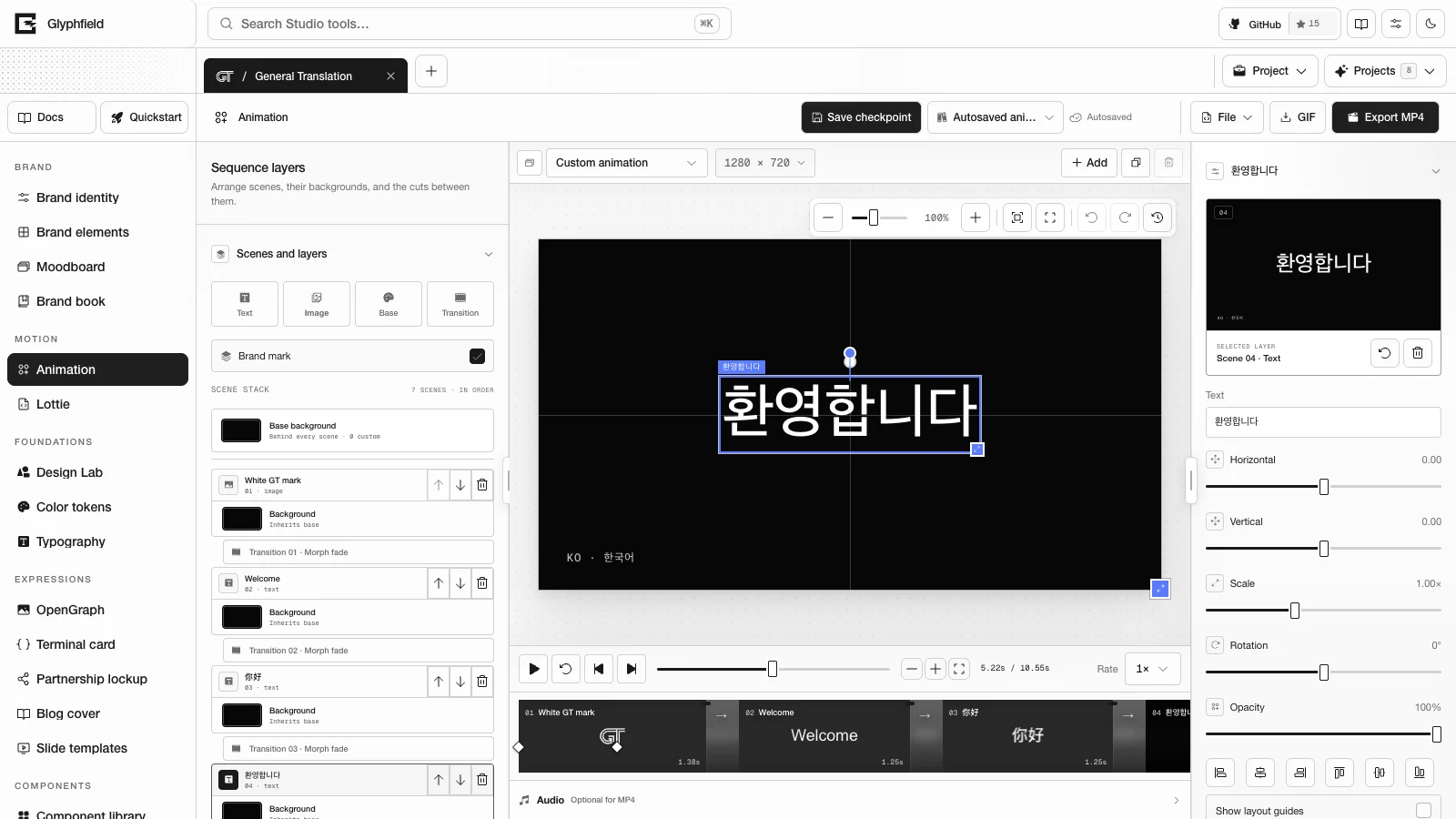
Source format
The source is a CanvasDocument schema 2 with metadata.tool: "animation-studio". metadata.animation holds mode, textFrames, includeBrandLogo, sequenceOrder, settings, frameSettings, sequenceBackground, backgroundOverrides, playbackRate (greater than 0, at most 4), audio, artboards, activeArtboardId, and an optional identity typography snapshot. Each frameSettings entry holds one scene's holdMs, transitionMs, transition, keyframes, textAnimation, caption, textAnchor, tracking, pose, and background override. Validation rejects malformed motion fields with their path, for example frameSettings.text-0.keyframes[1].atMs must be a finite number.
Browser API
The Browser API (window.glyphfield.studio) has these Animation actions:
| Action | Input | Output |
|---|---|---|
animation.describe | None | { durationMs, fps, width, height, playheadMs, scenes: [{ id, index, kind, label, startMs, holdMs, transitionMs, keyframes, textAnimation }], starters } |
animation.seek | { timeMs } | The animation.describe result. Pauses first |
animation.scene.update | { sceneId, holdMs?, transitionMs?, textAnimation?, pose? }. null resets holdMs or transitionMs to the sequence default and removes textAnimation | The animation.describe result |
animation.keyframe.set | { sceneId, atMs, pose?, easing?: [x1, y1, x2, y2] } | The animation.describe result |
animation.keyframe.remove | { sceneId, keyframeId } | The animation.describe result |
animation.motion.preset | { sceneId, preset: 'push-in' | 'rise-in' | 'slide-in' | 'pop-in' | 'float' } | The animation.describe result |
animation.starter.apply | { starterId: 'brand-intro' | 'product-reel' | 'proof-points' } | The animation.describe result |
animation.export | { format: 'gif' | 'mp4' | 'png', download? } | An export artifact |
animation.export.gif, .mp4, .png, .project | None | An export artifact |
textAnimation.preset is none, type-on, word-rise, line-reveal, glyph-stagger, or tracking-in. Pose fields are alignX, alignY, scale, rotation, and opacity. Each must be a finite number and is clamped to the range that saved keyframes use: alignX and alignY −1.5 to 1.5 (±1 is the canvas edge), scale 0.05 to 8, rotation −720° to 720°, and opacity 0 to 1. When a scene already has keyframes, animation.scene.update with a pose writes the keyframe at the playhead or inserts one there.
const studio = window.glyphfield.studio;
let animation = await studio.invoke('animation.starter.apply', { starterId: 'product-reel' });
const [first] = animation.scenes.filter((scene) => scene.kind === 'text');
await studio.invoke('animation.scene.update', {
  sceneId: first.id,
  holdMs: 1800,
  textAnimation: { preset: 'word-rise', durationMs: 640 },
});
await studio.invoke('animation.motion.preset', { sceneId: first.id, preset: 'push-in' });
await studio.invoke('animation.keyframe.set', { sceneId: first.id, atMs: 900, pose: { alignY: -0.05 } });
animation = await studio.invoke('animation.seek', { timeMs: first.startMs + 1200 });
const poster = await studio.invoke('animation.export.png');
The labels Scale and Text size exist both in Sequence defaults and in the scene inspector. studio.set('Scale', value) changes the first match, which is the sequence default. Use animation.scene.update to change a scene's pose.
HTTP
Animation has no HTTP generation route. Identity colors and fonts come from the active project.
Limits
| Item | Limit |
|---|---|
| Keyframes | 32 per scene |
| Scene hold | 100 ms–10 s in the inspector, and up to 60 s in source |
| Caption | 120 characters |
| Artboard | 120–4096 px per side in Artboard setup. The stage handles reach 3200 × 2400 |
| Frame rate | 10, 15, 20, 24, 30 FPS |
| Audio clip | At least 100 ms |
| Project file | 128 MiB |
Motion overview
Choose between Animation, Lottie, and Design Lab for motion work by comparing their inputs, timing models, frame rates, and export formats.
Lottie
Import Lottie JSON or .lottie files, then edit, recolor, and trim them over a transparent, solid, or live background and export frames, GIF, MP4, or source.