 Glyphfield
Component library
Build 36 product components from the brand tokens, review every state in light and dark mode, and copy their code as React with Tailwind or HTML with CSS.
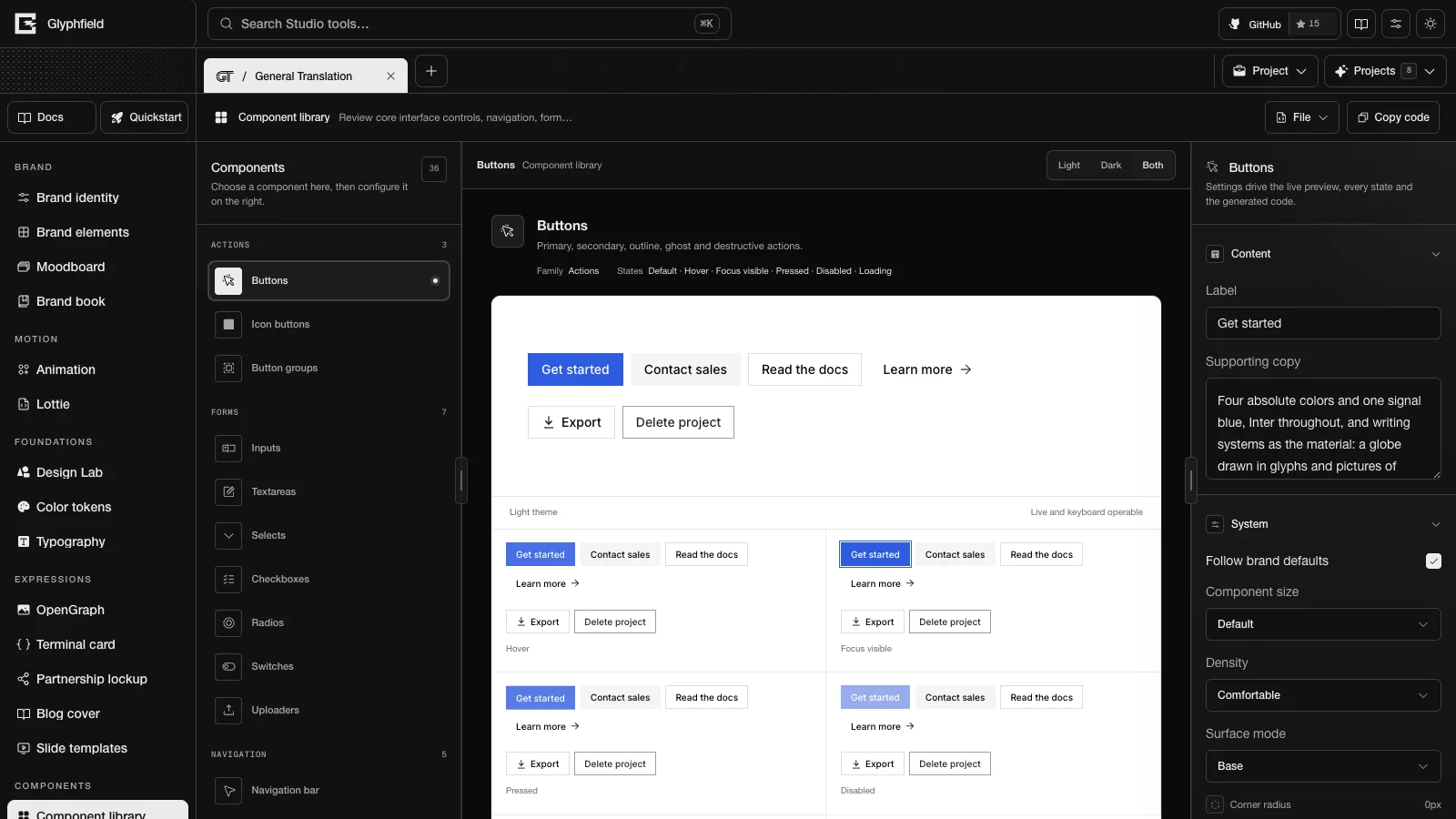
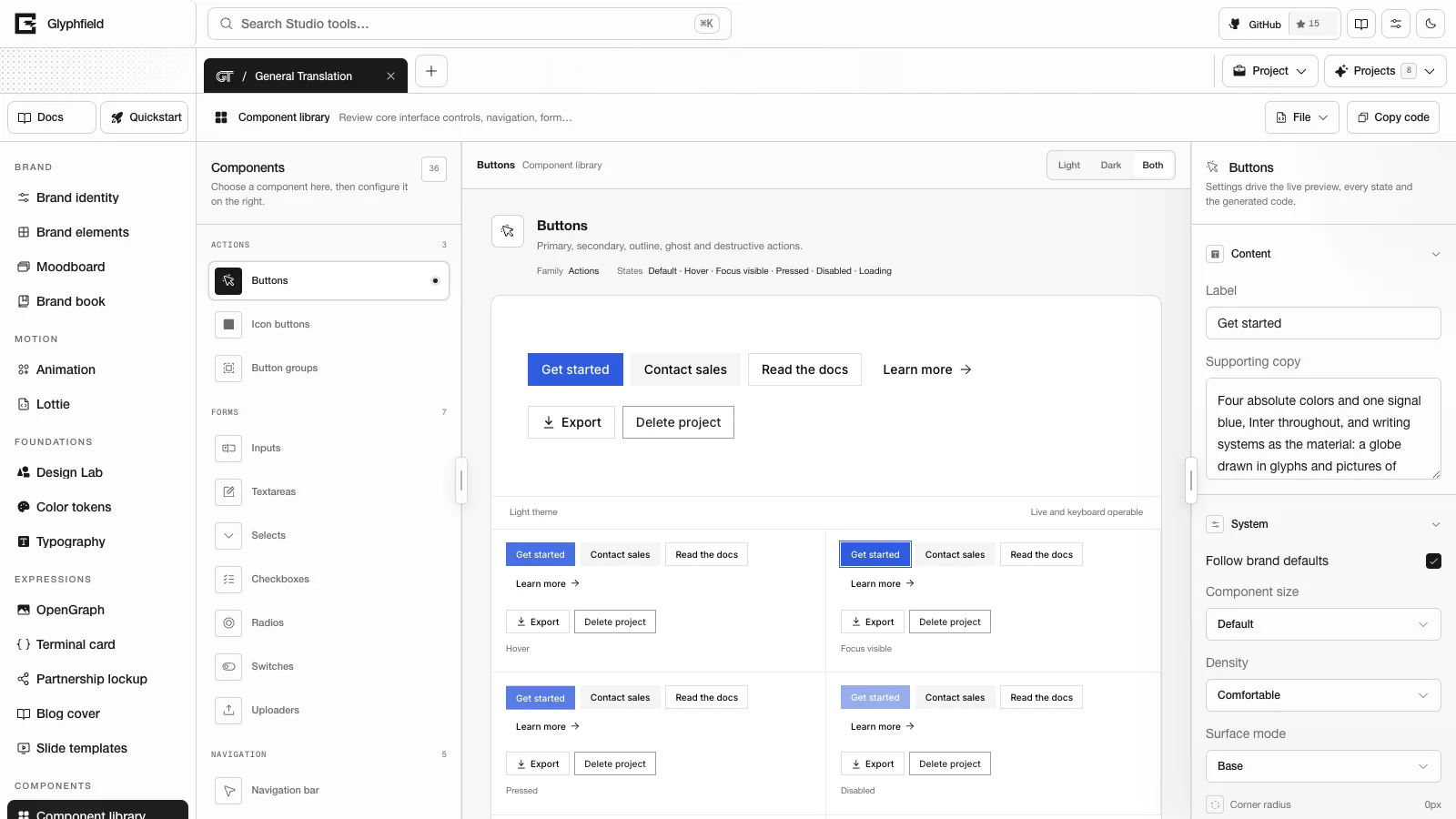
Component library (tool ID buttons) is the Glyphfield Studio tool that builds the active brand identity's product interface from its tokens: the semantic color roles, the fonts, the corner radius and a density. Each component shows a live demo that works with the keyboard, each of its states, light and dark mode, and the code to ship it.
Components
The library has 36 components in 10 families. components.list returns each component's id.
| Family | Components |
|---|---|
| Actions | Buttons (primary, secondary, outline, ghost and destructive), icon buttons, and button groups (a segmented control and a pager) |
| Forms | Inputs with hints, icons and validation; textareas with a character count; selects; checkboxes; radios; switches; uploaders |
| Navigation | Navigation bar, sidebars, tabs with arrow-key navigation, breadcrumbs and pagination |
| Feedback | Alerts for every status, toasts, progress and steps, badges and empty states |
| Data display | Tables with status and tabular numbers, stats and a bar chart |
| Cards | Product and content cards, and testimonials |
| Overlays | Command menu, modals, sheets, popover menus and tooltips |
| Messaging | An inbox with a reading pane, and comments with a composer |
| Commerce | Pricing and checkout |
| Content | Article body and metadata |
Content comes from the identity: its products, proof, audiences, voice, domain and contact email. Label sets the primary action, and Supporting copy sets the descriptions.
States
Each component lists the states that apply to it and shows them next to the live demo: Default, Hover, Focus visible, Pressed, Selected, Disabled, Loading and Error. Their IDs are default, hover, focus, active, selected, disabled, loading and error. The state replicas use the same markup and CSS as the demo with the state forced. Disabled state disables the live demo too.
Settings
| Section | Controls |
|---|---|
| Content | Label and Supporting copy |
| System | Follow brand defaults, Component size (Small, Default, Large), Density (Compact, Comfortable, Spacious), Surface mode (Base, or Soft for the muted surface behind components), Corner radius (0–32 px), Border width (0–4 px), Elevation (None, Soft, Strong) and Disabled state |
| Color system | Ten colors for a custom palette: Canvas, Surface, Text, Accent, Accent text, Muted surface, Muted text, Border, Success and Danger |
| Typography | Font role, Font weight (100–550), Text scale (70–140%) and Letter spacing (−6% to 12%) |
| Shared media | Shared asset (an identity image, excluding PDF files) and Asset opacity (0–100) |
With Follow brand defaults on, the density, radius, font and the light and dark colors come from the identity. Changing the density, radius, font or a color turns it off. The theme switch in the canvas toolbar shows light, dark or both. Light and dark use the identity's semantic roles (see Color tokens). With a custom palette, dark mode inverts it: the Text color becomes the canvas and the Surface color becomes the text.
Slider changes update the preview's CSS custom properties directly, without re-rendering the components.
Code
The code panel generates two files from the same settings as the preview:
| Format | Files |
|---|---|
| React + Tailwind | <Brand><Component>.tsx with Tailwind CSS v4 utilities (bg-primary, text-foreground, rounded-brand, and state variants such as hover:, focus-visible:, aria-invalid: and peer-checked:), and theme.css with the semantic roles for light and dark, the fonts and the radius |
| HTML + CSS | <component id>.html with gf-* classes, and components.css with the same tokens as CSS custom properties and the component rules for every state. For example, Switches produce toggles.html and Modals produce dialogs.html. |
The tokens come from the same serializers as the brand kit. Generated code shows the component's default state, and the Disabled state setting does not apply to it. The caution color always comes from the identity, even with a custom palette. The component root sets font-kerning: normal and automatic optical sizing. Copy code in the header copies both files, and each file also has its own copy button.
Accessibility
Controls are native elements with labels:
- Inputs are labeled with
for. - Switches use
role="switch"andaria-checked. - Tabs use
role="tablist"and move with the arrow keys, Home and End. - Dialogs and sheets use
aria-modaland labeled titles. - The focus ring uses the brand's
focusrole.
State replicas are inert, so keyboard focus stays in the live demo.
Browser API
The Browser API (window.glyphfield.studio) exposes these actions while Component library is the active tool:
| Action | Input | Output |
|---|---|---|
components.list | None | [{ id, label, family, description, states }] for every component |
components.code.read | { pattern?, format?: 'react' | 'html' } | { pattern, files: [{ name, language, code }] } |
components.code.copy | The same as components.code.read | The copied text: every file, each headed by its file name |
pattern is a component ID. Both inputs default to the selected component and code format.
Source
File → Edit source code shows version 2 with pattern, family, label, supportingCopy, disabled, size, density, radius, borderWidth, elevation, surface, theme, codeFormat, useBrandDefaults, colors (the ten custom colors), typography (role and weight), textScale, letterSpacing and asset (id and opacity). family must match the component. Numbers are clamped: borderWidth to 0–4, radius to 0–32, letterSpacing to −6 to 12, textScale to 70–140, typography.weight to 100–900 (displayed up to 550) and asset.opacity to 0–100. Version 1 sources still apply, and surface: "inverse" becomes theme: "dark". Settings saved by earlier versions, one draft per field, are migrated the first time the tool opens.
Related tools
Brand elements contains composed product applications that you configure one at a time, such as a navigation bar, a hero, a pricing card, a command menu, a modal, a toast, a data table, a checkout card and a settings panel. Use the Component library to build and review the system, and use Brand elements for one composed application and its brief.
The Studio's own editing interface is also built from shared components. Shared editor components describes them, and Source code editing describes the shared source drawer.
HTTP
The Component library has no HTTP route. POST /api/generate with kind: "element-brief" returns briefs for the product elements in Brand elements.
Limits
- Font weights display up to 550.
- Generated code shows the default state.
Slide templates
Build brand slide decks from 14 layouts with speaker notes and slide numbers, then export a slide as PNG or SVG or the whole deck as one PDF.
Source code editing
Read, edit and apply the JSON source document of any Studio tool in the source drawer or through the Browser API without breaking its layers or assets.