 Glyphfield
Brand book
Turn the brand identity into a 54-page standards book, reorder and hide its sections, edit each page's layout and copy, and print it to PDF.
Brand book (tool ID brand-book) is the Glyphfield Studio tool that turns the active brand identity into a 54-page editorial standards document. Every page is built from the same strategy, logo files, typography, colors, graphic device, image library, voice, applications and motion that the other Studio tools use.
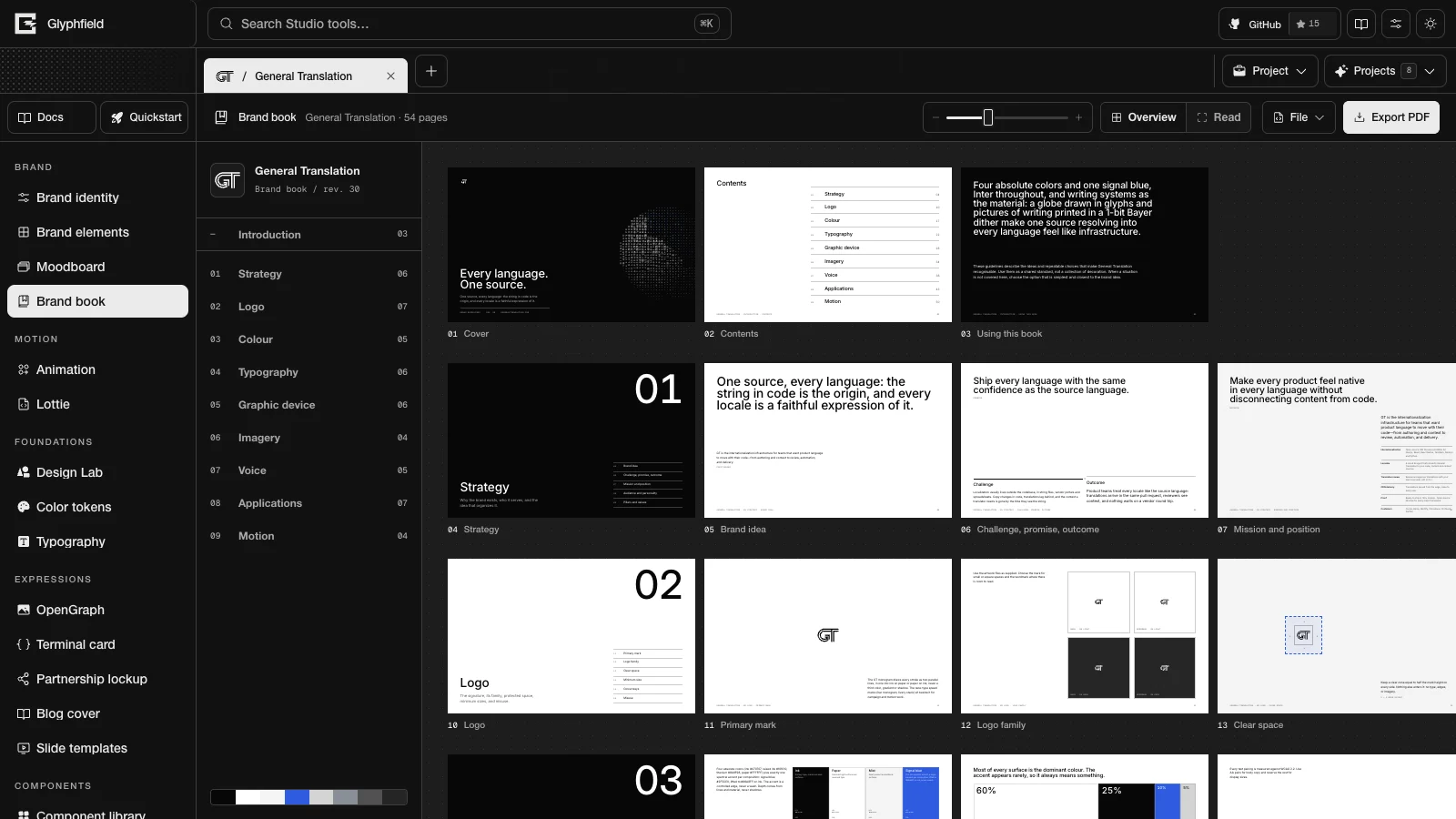
Book structure
Pages are 16:10 on a 12-column grid. A footer on each page shows the identity name, the section number and name, the page title and the folio (the page number). The cover, the section openers, the device hero page and the closing page have no footer. Each of the nine middle sections starts with a full-bleed opener page.
| Section | Pages | Content |
|---|---|---|
| Introduction | 3 | Cover, contents, and how to use the book |
| Strategy | 1 + 5 | Brand idea; challenge, promise and outcome; mission and position; audience and personality; pillars and values |
| Logo | 1 + 6 | Primary mark, logo family, clear space, minimum size, colorways and misuse |
| Colour | 1 + 4 | The palette with HEX, RGB and OKLCH values, proportion, every text pairing with its WCAG contrast, and tonal ranges |
| Typography | 1 + 5 | Display typeface, text typeface, pairing, type scale and the role of each face |
| Graphic device | 1 + 5 | The device, its construction, variations, the icon system and device rules |
| Imagery | 1 + 3 | Image direction, the approved library and image treatment |
| Voice | 1 + 4 | Voice principles, do and don't with real lines, the messaging hierarchy and a sample email |
| Applications | 1 + 6 | Layout grid, stationery, digital, social, events and a contact sheet of the applications |
| Motion | 1 + 3 | Motion principles with easing curves, motion tokens and the device in motion |
| Closing | 1 | The tagline |
"1 +" counts the section opener. You can reorder and hide the nine middle sections. The introduction and the closing page stay in place.
Overview and reading modes
Overview shows every page as a contact sheet. Click a thumbnail to open that page in Read, which shows one page at a time with a page counter and the page inspector. In Read, the Left and Right arrow keys turn pages, and Escape returns to Overview. Read includes hidden pages. The section index on the left works in both views.
Page thumbnail size (200–420 px, default 272) changes the contact sheet only. It does not change the page dimensions, the typography or the PDF.
Edit the book
| Scope | Controls |
|---|---|
| Text | In Read, click any text on the page to edit it in place. The Copy section of the inspector lists the same fields as Page <slot> copy text areas of up to 1200 characters each. |
| Page | Show page, Layout (the page's layouts), Surface (Paper, Muted, Ink, Deep or Accent) and, on pages that show an image, Image. Reset page returns the page to the identity defaults. |
| Section | The left index has Hide <section> section (or Show <section> section), Move <section> section earlier and Move <section> section later. The inspector has Show section, Earlier and Later for the current section. |
Hidden pages and sections stay visible but dimmed in Overview, so you can restore them. They are left out of the folios, the contents page and the PDF. Edits are saved per project.
Keep foundational changes in Brand identity. Use book edits for presentation and wording that belong to this document only.
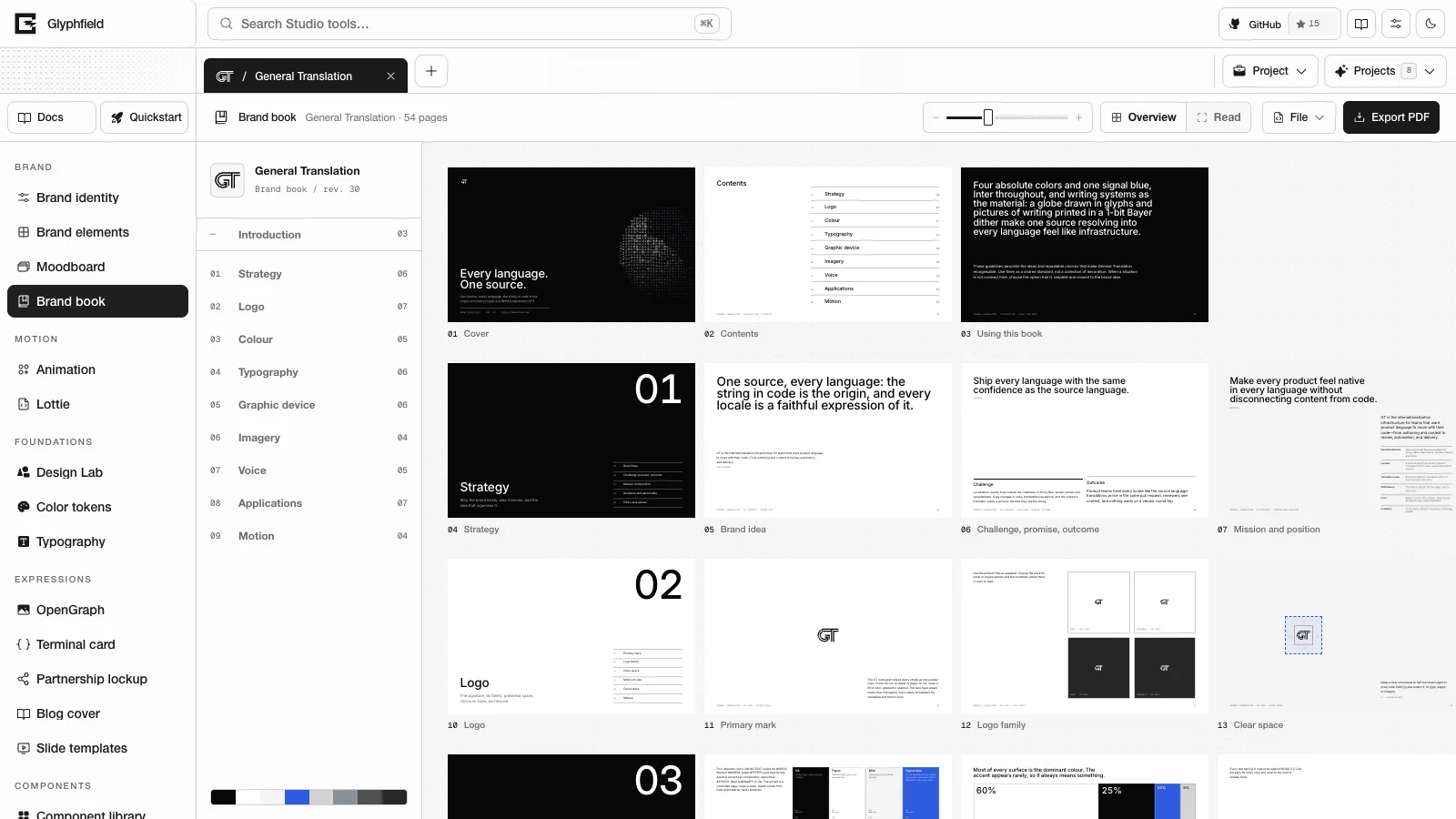
Source format
File → Edit source code reads and applies the book as JSON:
{
  "schema": "glyphfield.brand-book",
  "version": 1,
  "sections": [
    {
      "id": "strategy",
      "name": "Strategy",
      "hidden": false,
      "pages": [
        { "id": "strategy-premise", "title": "Brand idea", "hidden": false, "variant": "statement", "variants": ["statement", "centered"], "tone": "paper", "assetId": "", "imageSlot": false, "copy": { "statement": "…", "aside": "…" } }
      ]
    }
  ]
}- When present,
schemamust beglyphfield.brand-bookandversionmust be 1. - Section IDs are
intro,strategy,logo,colour,typography,device,imagery,voice,applications,motionandclosing. The order of the nine middle sections followssections.introandclosingmay be listed but do not move. - A page may appear only under its own section.
variantmust be one of the page'svariants, andtoneone of the five surfaces.assetIdis an identity image ID, or empty for the graphic device, and applies only to pages withimageSlot: true. copykeys must be the page's editable slots, and each value holds up to 1200 characters. Values equal to the identity defaults are not stored.- Sections and pages that a document omits keep their current settings.
Browser API
The Browser API (window.glyphfield.studio) exposes one action while Brand book is the active tool:
| Action | Input | Output |
|---|---|---|
brand-book.print | None | null. Opens the browser print dialog for the visible pages. |
readSource() and applySource() read and apply the book document above.
Export PDF
Export PDF (brand-book.print) opens the browser print dialog with one page per sheet at 16 × 10 in and no margins. In the dialog, choose the "Save as PDF" destination to get a PDF file. Only visible pages print, in the edited order. The browser's own print command prints the same pages. Before exporting:
- Resolve missing logo or font assets.
- Check the use of the light and dark marks.
- Review long strategy text for overflow.
- Confirm that reference assets are redistributable when they appear in the output.
The PDF is a snapshot. Export again after you edit the identity or the book.
Moodboard
Compose the brand identity as an editable board of tiles in five compositions, edit each tile's layout and copy, and export it as PNG, SVG or JSON.
Motion overview
Choose between Animation, Lottie, and Design Lab for motion work by comparing their inputs, timing models, frame rates, and export formats.