 Glyphfield
Design Lab
Compose layered brand graphics from text, marks, images, and live shaders on an open canvas with artboards, then export images, video, or a project file.
Design Lab is Glyphfield's layered composition tool. Its public tool ID is material. It combines the shared Shader Library with a portable layer document (CanvasDocument schema 2 with Design Lab metadata source version 4), direct canvas editing, saved checkpoints, still export, and GIF and MP4 export encoded in the browser.
Use it for posters, social images, key visuals, stickers, and short shader clips. Animation is the tool for sequences of scenes on a timeline. The expression tools produce fixed-format social images and slides.
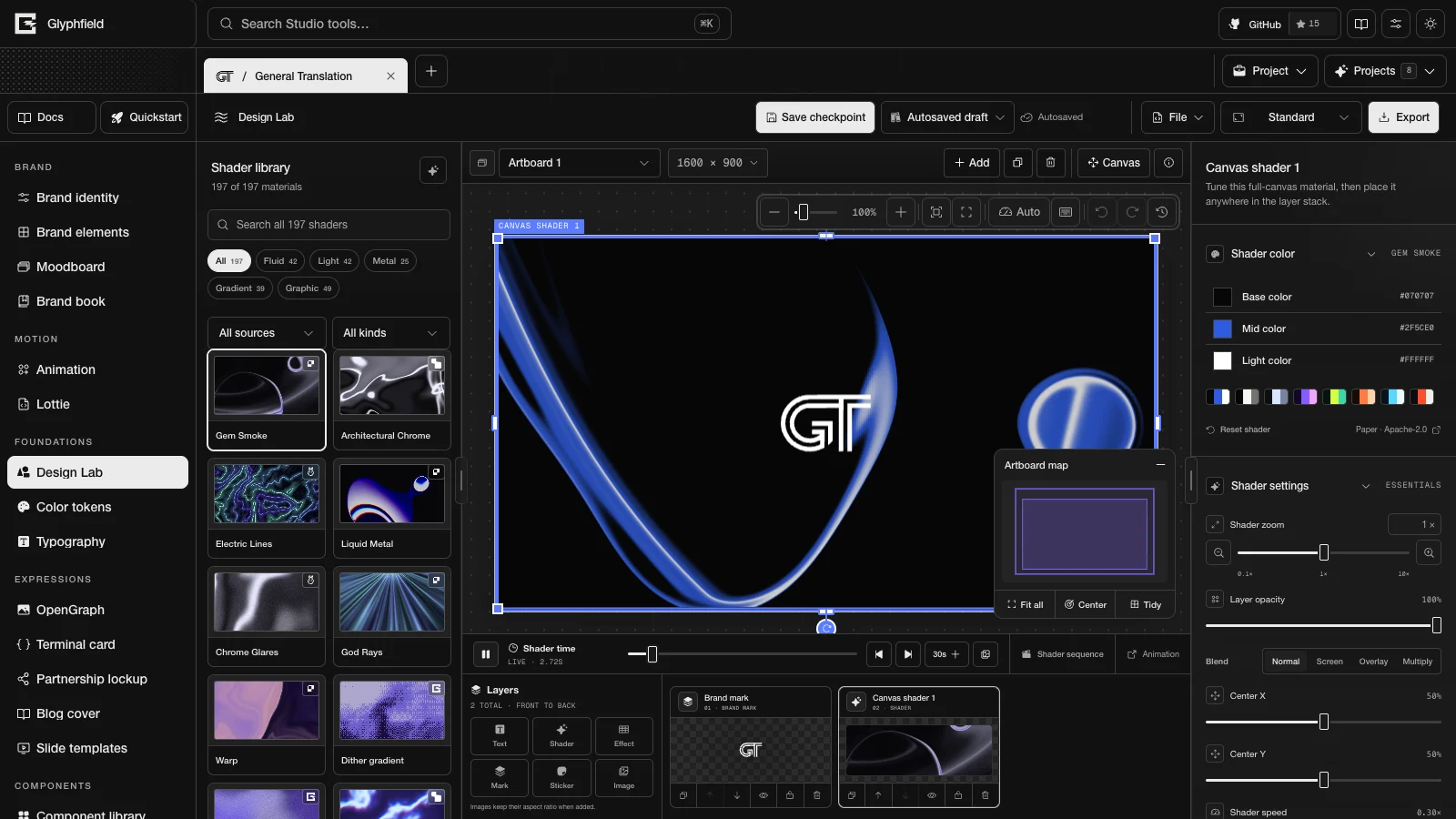
Every layer kind and editing tool is described in Layers and editing. Converters and image effects are in Effect layers. Shader layers, preview quality, shader time, and shader sequences are in Shaders and time. The export settings, saved designs, project files, and the source document are in Export, saving, and source.
Layout
| Region | Contents |
|---|---|
| Tool header | Save checkpoint, the Saved designs picker, the save status, File, Export size preset, and Export |
| Artboard bar | The active artboard picker, Artboard setup (name and size), Add, Duplicate active artboard, Delete active artboard, Frame selection (when loose layers are selected), Canvas, and Artboard tutorial |
| Canvas toolbar | Zoom out, the zoom slider, the zoom percentage (Reset to 100%), zoom in, Reset view, Fit canvas, Live shader preview quality, Keyboard shortcuts, Undo, Redo, and Action history |
| Left sidebar | The Shader Library: random pick, search, look buttons with counts, the source filter, the kind filter, and material cards |
| Canvas | Artboards, loose layers, selection handles, the Artboard map, and the shader time strip below the canvas |
| Right inspector | With nothing selected: Composition, Artboards, Layers, and Developer handoff. With a layer selected: that layer's controls |
| Layer dock | Add buttons (Text, Shader, Effect, Mark, Sticker, Image) and one card per layer, front to back |
Both sidebars collapse from their edge handles and resize when their edge is dragged. A focused resize handle also accepts the arrow keys. Widths and the collapsed state are stored in this browser. On narrow screens the panels stack. The collapse buttons are labelled Collapse Shader library and Collapse Design Lab controls, and they become Expand Shader library and Expand Design Lab controls when collapsed.
The save status shows one of Opening, Saving, Saving name, Unsaved changes, Saved, Autosave failed, Loading autosave, Preparing assets, Autosaved, Autosaving, or Save failed. File contains Open project file, Download project file, and Edit source code. A failed file or export action shows an Error button that opens the full message.
Canvas and artboards
The canvas is an open workspace. It holds loose layers anywhere, including at negative coordinates, and has no output size. An artboard is a named, sized output surface on the canvas. Exports contain only the layers inside the selected artboard.
- Choose Canvas in the artboard bar, or click empty canvas, to add loose layers. Loose layers have the same controls as artboard layers.
- Drag a layer out of an artboard to make it loose. Drop a layer with its center inside an artboard to move it into that artboard. The layer menu also offers Move to canvas and a destination for each named artboard.
- Select loose layers and choose Frame selection to create an artboard around them. The new artboard keeps the layers' size on the canvas and adds 48 px of padding.
- Effect layers belong to an artboard. They cannot be added to the loose canvas.
- Saved designs and project files keep the loose canvas and every artboard.
Artboard setup offers these presets and a custom size from 120 to 4096 px on each side:
| Preset | Size (px) |
|---|---|
| Wide | 1600 × 900 |
| Square | 1080 × 1080 |
| OG Social | 1200 × 630 |
| Banner | 1000 × 300 |
| Portrait | 1080 × 1350 |
| Story | 1080 × 1920 |
| 3:4 | 1080 × 1440 |
| 2:3 | 1080 × 1620 |
| 1:2 | 1080 × 2160 |
Add creates an empty artboard with the size and background color of the active artboard. Duplicate active artboard also copies its layers. The loose canvas has a fixed reference size of 1600 × 900, and its layers can extend past it.
Navigate the canvas
- Scroll to zoom around the pointer. Zoom ranges from 5% to 800% and opens at 40%.
- Drag empty canvas to pan. Hold Space and drag, or drag with the middle mouse button, to pan over content.
- Click an inactive artboard to select it, or drag its surface to move it. Double-click a layer on an inactive artboard to enter that artboard with the layer selected. Any artboard can be dragged by its name label, and a focused label moves with the arrow keys.
- Fit canvas fits every artboard and loose layer. Reset view returns to the starting view. The percentage button resets the zoom to 100%.
- Inactive artboards and loose-layer previews that are off screen release their shader renderers. Selection, editing, and export keep the active renderers.
The Artboard map is a minimap in a bottom corner of the canvas. Click or drag inside it to pan. Its action row has Fit all, Center (centers the selected artboard at the current zoom), and Tidy (arranges the artboards in a grid and fits them). Drag the map's header to move it, and it docks in the nearest bottom corner on release. With the header focused, the left and right arrow keys dock it, and Escape cancels a drag. Hide artboard map collapses it.
Keyboard shortcuts
Press ? or choose Keyboard shortcuts in the canvas toolbar to open the shortcut sheet. Escape or Close keyboard shortcuts closes it. The sheet and the key handler read the same list in src/lib/designLabShortcuts.ts.
| Keys | Action |
|---|---|
| T, S, M, I, K, E | Add a text layer, shader layer, brand mark, image, sticker, or Effect layer |
| ⌘/Ctrl + Z, Shift + ⌘/Ctrl + Z | Undo, redo |
| ⌘/Ctrl + C, ⌘/Ctrl + X, ⌘/Ctrl + V | Copy, cut, and paste layers |
| ⌘/Ctrl + A | Select every unlocked layer on the active surface |
| Option/Alt + ⌘/Ctrl + C, Option/Alt + ⌘/Ctrl + V | Copy style, paste style |
| ⌘/Ctrl + D | Duplicate the selection |
| Delete or Backspace | Delete the selection |
| ⌘/Ctrl + G, Shift + ⌘/Ctrl + G | Group, ungroup |
| Shift + ⌘/Ctrl + L | Lock or unlock |
| Shift + F10 | Open the layer or canvas menu |
| Arrow keys | Nudge 1 px, or 10 px with Shift |
| ⌘/Ctrl + ], ⌘/Ctrl + [ | Bring forward, send backward |
| Shift + ⌘/Ctrl + ], Shift + ⌘/Ctrl + [ | Bring to front, send to back |
| Option/Alt + A, H, D | Align left, horizontal center, right |
| Option/Alt + W, V, S | Align top, vertical center, bottom |
| Option/Alt + Shift + H, V | Distribute horizontally, vertically |
| Space + drag | Pan |
| Scroll | Zoom around the pointer |
| F | Fit canvas |
| + or =, − | Zoom in, zoom out by 10 percentage points |
| ? | Show or hide the shortcut sheet |
| ⌘/Ctrl + B, I, U | Bold, italic, underline while editing text |
| Escape | Finish editing text |
Layer and edit shortcuts work while Design Lab has focus or the pointer is over it. Undo, redo, F, + and − work while the canvas has focus or the pointer is over it. No shortcut runs while a text field, menu, dialog, or list box has focus.
Option/Alt shortcuts and the ⌘/Ctrl chords read the physical key, so they work on keyboard layouts where Option or Shift produces another character. Duplicate, delete, cut, and the order chords act on the canvas selection. When no canvas layer is selected, they act on the layer chosen in the layer list. Delete and cut skip a locked layer. ⌘/Ctrl + X with no layer selected does nothing, and ⌘/Ctrl + C with no layer selected copies the artboard. I and K open the image picker. E on the loose canvas shows a message and adds no Effect layer. Align shortcuts need two or more layers, and distribute shortcuts need three.
Browser API
The Browser API (window.glyphfield.studio) exposes these Design Lab actions while Design Lab is the active tool, in addition to the standard source and control actions. describe() returns the current action list and contracts.
| Group | Actions |
|---|---|
| Workspace | design.workspace.describe, design.workspace.activate, design.workspace.move, design.workspace.frameSelection |
| Layers | design.layers.arrange, design.layers.lock, design.layers.rotate, design.layers.copyStyle, design.layers.pasteStyle, design.text.format |
| Effect layers | design.effects.describe, design.effects.add, design.effects.configure |
| Shader time | design.frame.pause, design.frame.play, design.frame.seek, design.frame.capture, design.motion.describe |
| Shader sequence | design.sequence.describe, design.sequence.configure, design.sequence.preview, design.sequence.stop |
| Export | design.export, design.export.png, design.export.jpg, design.export.gif, design.export.mp4, design.export.shader-sequence.gif, design.export.shader-sequence.mp4, design.export.project |
Each Design Lab page lists the inputs and outputs of its actions. The Studio Browser API reference describes the lifecycle, controls, and errors.
HTTP
POST /api/generate with kind: "design-sequence" returns a response-schema-1 envelope. Its document is a version-3 compatibility source for Design Lab, with a resolved shader timeline and browser commands. Apply response.document with applySource, then read the normalized CanvasDocument again before further edits. The server does not render Design Lab pixels. See Generation API.
Limits and requirements
| Item | Limit |
|---|---|
| Artboard size | 120–4096 px per side |
| Export width | 320–3840 px, even numbers. The height follows the artboard ratio |
| Motion export | 1.2, 1.6, 2.4, or 4 seconds at 12, 15, 24, 30, or 60 FPS |
| Imported image | 4,000,000 bytes. PNG, JPG, WebP, AVIF, GIF, BMP, or SVG |
| Captured shader frame | A PNG smaller than 25 MB |
| Project file | 128 MiB (134,217,728 bytes) |
| Text size | 1–2048 px |
| Live shaders | WebGL2 for Paper, Glyphfield, Fluid, and ShaderGradient materials. WebGPU for Shaders.com materials |
| Image effects | WebGPU. Exports stop with an error when it is unavailable |
| MP4 | A browser video encoder. H.264 is preferred |
Text, mark, image, sticker, and shader layers rotate about their centers, and the angle is stored in the range −180° to 180°. Effect layers cover the artboard and do not rotate. While a layer is dragged, it snaps within 6 screen pixels to the artboard's edges, center, and rule-of-thirds lines, and to the edges and centers of other layers.
Lottie
Import Lottie JSON or .lottie files, then edit, recolor, and trim them over a transparent, solid, or live background and export frames, GIF, MP4, or source.
Layers and editing
Add and edit every kind of Design Lab layer, format parts of a text box, crop images, and rotate, align, lock, or copy the style of selected layers.