 Glyphfield
Expression tools
Edit the layered documents behind OpenGraph, Terminal card, Partnership lockup, Blog cover and Slide templates, and export them as PNG, SVG or PDF.
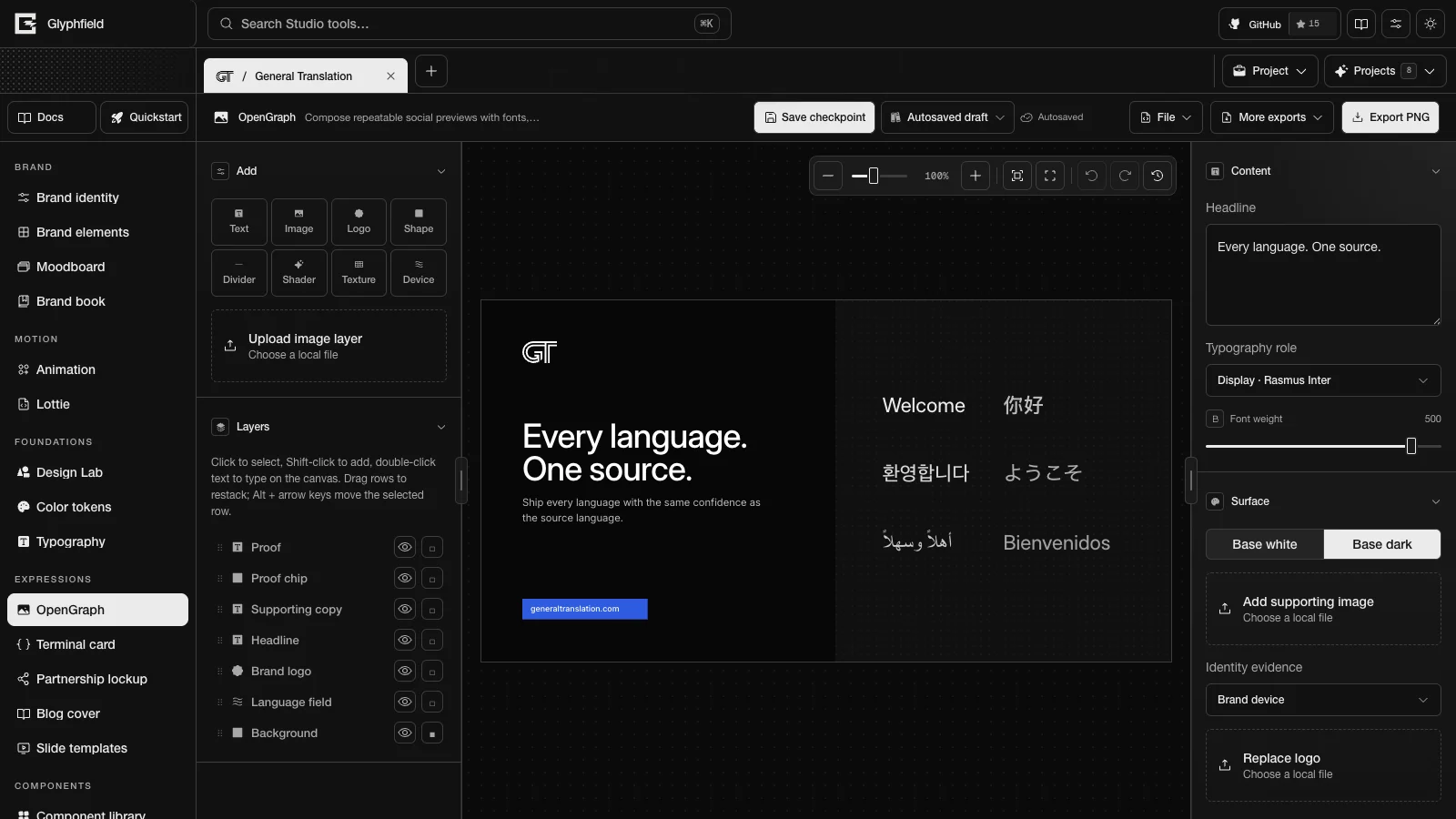
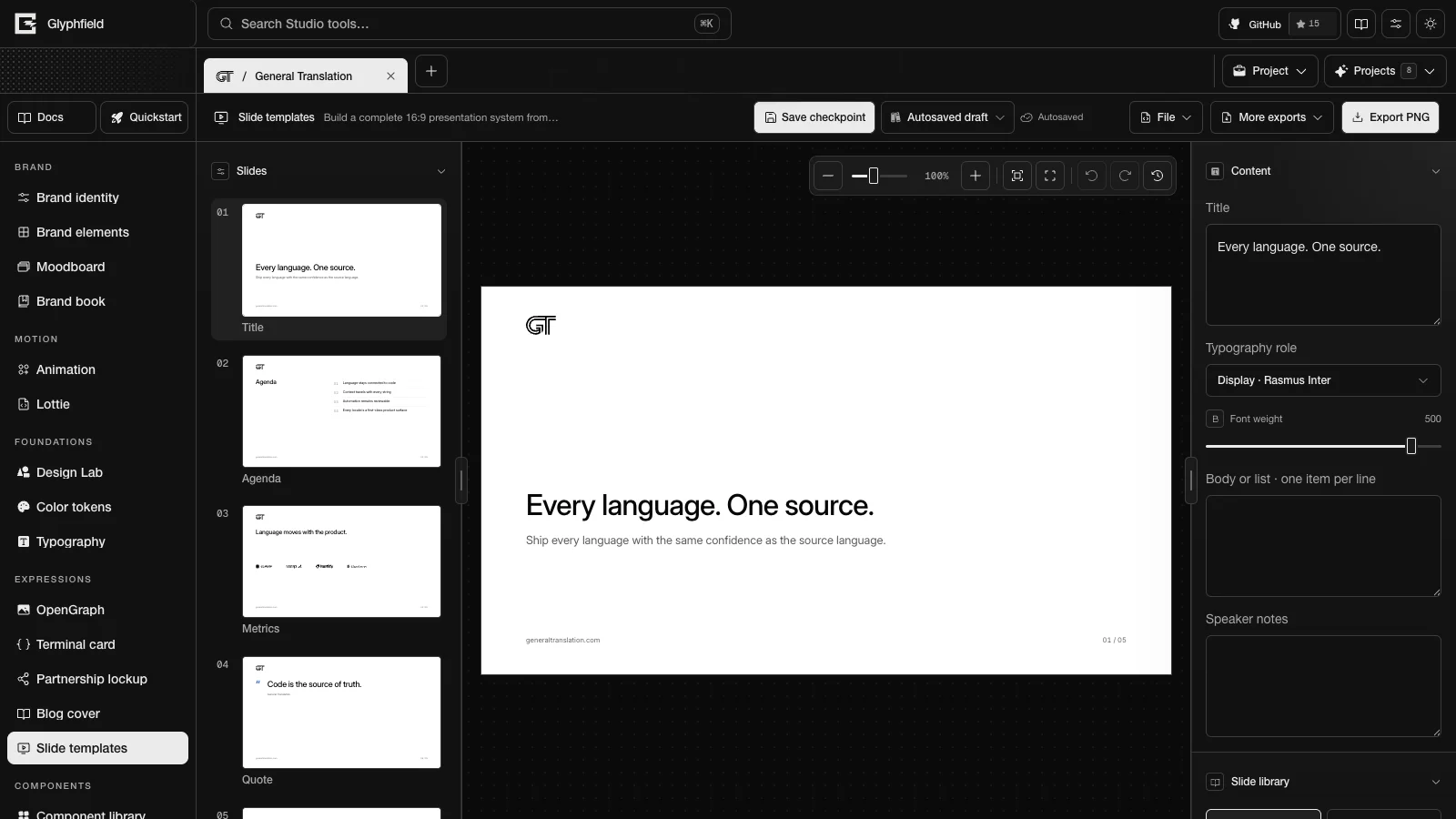
OpenGraph, Terminal card, Partnership lockup, Blog cover and Slide templates are the five expression tools. They make finished brand artifacts such as social images, code cards, co-brand lockups, blog covers and slide decks. All five share one editor and one document format. Each tool starts from a brand template built from the active identity (the brand identity of the open project): its colors, type roles, logos, graphic device, products, proof and voice. Everything on the artboard is a layer that you can select, move, restyle or delete.
Tools
| Tool | ID | Default format | Layouts | Page |
|---|---|---|---|---|
| OpenGraph | opengraph | opengraph 1200 × 630 | split, statement, media (Full bleed), centered, editorial | OpenGraph |
| Terminal card | terminal | opengraph 1200 × 630 | card, split, focus, caption | Terminal card |
| Partnership lockup | partnership | lockup 1200 × 600 | lockup, centered, hero (Hero lockup), announcement | Partnership lockup |
| Blog cover | blog | opengraph 1200 × 630 | editorial, feature (Feature image), statement, centered, ledger (Index) | Blog cover |
| Slide templates | slides | 16x9 1600 × 900 | 14 layouts, chosen per slide | Slide templates |
Each built-in identity sets its own default layout and page surface for each tool.
Formats
| Social format ID | Size (px) | Slide format ID | Size (px) |
|---|---|---|---|
opengraph | 1200 × 630 | 16x9 | 1600 × 900 |
wide | 1600 × 900 | 4x3 | 1600 × 1200 |
square | 1080 × 1080 | square | 1200 × 1200 |
portrait | 1080 × 1350 | ||
story | 1080 × 1920 | ||
linkedin | 1200 × 627 | ||
lockup | 1200 × 600 |
OpenGraph, Terminal card, Partnership lockup and Blog cover use the social formats. Slide templates uses the slide formats. Format re-flows every page into its current layout at the new size. Layers that you added move and scale with the page.
Editor layout
| Region | Contents |
|---|---|
| Tool header | Save checkpoint, the Saved designs picker, the save status, File (Edit source code), More exports (Export SVG, plus Export PDF deck in Slide templates) and Export PNG |
| Left sidebar | Slides (Slide templates only), Add and Layers |
| Canvas | The artboard in the shared canvas viewport, with zoom controls, Undo, Redo and Action history |
| Right sidebar | The tool's own sections (such as Content, Surface, Source or Partner), the sections of the selected layer, then Format and layout |
Format and layout holds Format, one button per layout, Page surface and Reset to brand template. Slide templates chooses layouts in its Slide library section instead.
Type, spacing and logos
Every template sizes type from one modular scale per format with a ratio of 4:3. The body size is √(width × height) × 0.0176 for slides and √(width × height) × 0.0212 for social formats. Social images get the larger share because people often see them as small thumbnails.
| Step | 1600 × 900 slide | 1200 × 630 social image |
|---|---|---|
| caption | 16 px | 14 px |
| body | 21 px | 18 px |
| lead | 28 px | 25 px |
| subhead | 38 px | 33 px |
| headline | 50 px | 44 px |
| title | 67 px | 58 px |
| hero | 89 px | 78 px |
- Template tracking follows the size: −0.022 em at title size and larger, −0.018 em at headline size, −0.014 em at subhead size, −0.008 em at lead size and 0 at body size and smaller. Uppercase text gets half of these values, and code keeps 0. Templates set tracking to 0 or a negative value. The Tracking slider in the inspector accepts −10% to +20%.
- Text renders with kerning on (the
kernfeature). When a font has an optical size axis, the axis follows the font size. The canvas, the inline text editor, SVG and PNG use the same settings. - A 16:9 slide title is 6–8% of the slide height (67 px on a 1600 × 900 slide). Headlines on content layouts stay at or below 6% of the height. Tests in
src/lib/__tests__/expressionType.test.tscheck these limits. - Templates have no kicker, eyebrow, brand-name or issue labels above headlines. Metadata such as the website, the page number, a metric's label or a comparison side goes in the footer or after its content.
- Logos are sized by the ink they show. Each bundled logo file carries a measured ink box. A mark's height falls as its width grows (height ∝ aspect^−0.4), so a square monogram and a long wordmark carry similar visual weight.
Edit on the canvas
- Click a layer on the canvas or in Layers to select it. Shift-click, ⌘-click or Ctrl-click adds a layer to the selection or removes it. ⌘/Ctrl + A selects every unlocked layer on the page. Escape clears the selection.
- Drag a layer to move it. Within 6 screen pixels, the layer snaps to the artboard edges and center and to the edges and centers of other layers. Guides show each match.
- Drag an edge or corner handle to resize a layer. To rotate a layer, use the Rotation slider (−180° to 180°) or the buttons that rotate it by 15° in the Layer section.
- Arrow keys nudge the selected layer by 1 px. Shift + arrow nudges it by 10 px.
- To type on the canvas, double-click a text layer or select it and press Enter. Escape or a click outside the text ends editing.
- Delete or Backspace deletes the selection. ⌘/Ctrl + D duplicates it with a 24 px offset. With one layer selected, ⌘/Ctrl + ] moves it forward and ⌘/Ctrl + [ moves it backward. Add Shift to move it to the front or the back.
- To open the selection menu, right-click a layer or focus it and press Shift + F10.
- ⌘/Ctrl + Z undoes and Shift + ⌘/Ctrl + Z redoes while the pointer is over the canvas or the canvas has focus. History keeps 120 steps. Repeated edits to the same property within 900 ms count as one step, so a drag or a burst of typing undoes at once.
Layers lists the stack with the top layer first. To restack, drag a row by its handle, or focus the row and press Alt + ↑ or Alt + ↓. Each row has a button that hides the layer and a button that locks it. A locked layer cannot be selected or moved on the canvas. Select its row in Layers to edit it in the inspector. The page background starts locked, so a click on the page selects the content on top of it.
Add layers
Add has one button per layer kind: Text, Image (an image from the identity library), Logo, Shape, Divider, Shader (a shader background), Texture and Device (a brand device). Upload image layer adds a local image file. Shader and texture layers go directly above the page background, below the content. A shader layer shows the captured still of its material from the Shader Library (Glyphfield's catalog of shader materials), so the canvas and the export match.
Brand devices are generated graphics in the identity's colors: greetings (Language field), beam (Knowledge beam), waves (Utility wave), ledger (Savings ledger), horizon (Network horizon), convergence (Convergence field), field (Programmable field), window (Focus window) and interruption (Engineered interruption).
Inspector
| Section | Controls |
|---|---|
| Layer | Name, X, Y, W, H, Rotation (−180° to 180°) with 15° rotate buttons, Layer opacity, Hidden, Locked, bring forward, send backward, To front, To back, six alignment buttons, Duplicate layer and Delete layer |
| Text | Text, Type role (Display, Body, Accent or Code), Text size 8–400 px, Text weight 100–550, Tracking −10% to +20%, Line height 70–240%, Color, text alignment, Casing (As typed, Uppercase or Lowercase), Vertical (Top, Middle or Bottom), Shrink to fit the box and Upload layer font |
| Image | Library image, Replace image, Fit (Fill frame, Fit inside or Stretch), Treatment (Natural, Monochrome, Duotone or Brand duotone), Image zoom 50–300%, Image horizontal and Image vertical −100% to 100%, and Corner radius 0–200 px |
| Logo | Logo artwork, Replace logo artwork, Tone (Original colors or a brand color) and Logo effects (invert, dither, outline and shadow) |
| Shape | Shape (Rectangle, Ellipse or Line), Fill, Stroke, Stroke width 0–24 px and, for rectangles, Corner radius 0–400 px |
| Shader | Tint (Original colors or Brand duotone) and a compact Shader Library with search and filters that shows 12 materials at a time |
| Texture | Pattern (Grid, Dots, Lines, Diagonal or Noise), Color and Texture spacing 4–160 px |
| Brand device | Device |
| Code window | Theme (Brand dark, Brand light or Classic dark), Chrome (File tabs, Window or None), Line numbers, Code size 9–48 px, Code line height 100–240% and Window radius 0–64 px |
| Chart | Values · comma separated, Labels · comma separated and Bars |
When several layers are selected, the Selection section offers the six alignment buttons, Duplicate selection and Delete selection.
Color fields list the identity's color roles (ink, paper, muted, emphasis, success, warning, progress and error, where the identity defines them) and Custom color…, which opens the shared color picker. A layer that uses a role stays linked to the identity. When that identity color changes, the layer changes with it.
Layouts
A layout button re-flows the layers that the template placed. Text, uploads and styles that you set by hand stay. Content that the new layout has no slot for is kept and returns when you switch back. Reset to brand template rebuilds the document from the identity's template at the current format, and you can undo it.
Export
| Action | Result |
|---|---|
| Export PNG | The active page rendered as SVG and rasterized at 2×, with the long edge capped at 4800 px |
| More exports → Export SVG | The active page as a self-contained SVG with its images and font files embedded |
| More exports → Export PDF deck | Slide templates only: every slide in one PDF |
PNG and SVG files are named studio-<tool ID>.png and studio-<tool ID>.svg. In Slide templates, slides after the first add a two-digit slide number, for example studio-slides-02.png. Exports render from the same document as the canvas.
Source format
Each tool stores its work as a CanvasDocument schema 2 (Glyphfield's portable document format) with expression source version 2. Each page is an artboard, and Slide templates has one page per slide. Elements are layers. Each template layer has a data.slot role, and its colors are brand roles. metadata.studio holds { sourceVersion: 2, toolId, state }. state holds the format, each page's layout and surface, the text that a layout set aside, and flat title, body, code and language fields. The flat fields mirror the first page's headline, its list or supporting copy, and its code. Editing a flat field in source updates the layer it mirrors.
Applying source rejects a document of another tool or kind and a document with a newer sourceVersion. Text layers need a textStyle, and code layers need at least one tab. Library assets embedded as data URLs are pointed back at the identity's files. Version-1 sources (the flat tool state from before the shared editor) migrate when you open or apply them. See Source format reference.
Browser API
The Browser API (window.glyphfield.studio) gives every expression tool these actions. {tool} stands for opengraph, terminal, partnership, blog or slides.
| Action | Input | Output |
|---|---|---|
{tool}.document.describe | None | { format, formats, layouts, activePageId, selection, pages: [{ id, index, name, layout, surface, width, height, notes, layers }] }. Layers are listed top first with id, name, kind, component, slot, content (text layers), bounds, hidden and locked |
{tool}.layer.add | { kind: 'text' | 'image' | 'logo' | 'shape' | 'divider' | 'shader' | 'texture' | 'device', pageId?, content?, bounds?, fill?, libraryAssetId?, dataUrl?, fileName?, materialId?, device?, shape?: 'rect' | 'ellipse', variant?: 'mark' | 'wordmark' } | { id } |
{tool}.layer.update | { id, name?, content?, bounds?, opacity?, hidden?, locked?, fill?, fontRole?, fontSize?, fontWeight?, letterSpacing?, lineHeight?, align?, casing?, radius?, data? } | null |
{tool}.layer.remove, {tool}.layer.select | { ids } | null |
{tool}.layer.duplicate | { ids } | { ids } |
{tool}.layer.reorder | { id, to: 'forward' | 'backward' | 'front' | 'back' | number } | null |
{tool}.layer.align | { ids, alignment: 'left' | 'horizontal-center' | 'right' | 'top' | 'vertical-center' | 'bottom' } | null. Aligns to the artboard |
{tool}.format.set | { format } | null |
{tool}.layout.apply | { layout, pageId? } | null |
{tool}.template.reset | None | null |
{tool}.history.undo, {tool}.history.redo | None | true, or false when there is nothing to undo or redo |
{tool}.export.png, {tool}.export.svg | None | The export artifact of the active page |
layer.update clamps fontSize to 4–1200, fontWeight to 100–550, letterSpacing to −0.2 to 0.5 em, lineHeight to 0.6–3, opacity to 0–1 and radius to 0–2000. align is left, center or right. fill is a color role, a #RRGGBB value or none. Call document.describe first. It returns the layer IDs, slots, formats and layouts that the other actions take. Each tool page lists the extra actions of that tool.
const studio = window.glyphfield.studio;
const doc = await studio.invoke('opengraph.document.describe');
const headline = doc.pages[0].layers.find((layer) => layer.slot === 'headline');
await studio.invoke('opengraph.layer.update', { id: headline.id, content: 'Ship every locale', fontRole: 'Display' });
await studio.invoke('opengraph.format.set', { format: 'square' });
const png = await studio.invoke('opengraph.export.png');
studio.download(png);
HTTP
POST /api/generate with kind: "template" renders the same brand templates as a standalone SVG with the brand fonts embedded. template is slides (the default), blog, partnership, opengraph or terminal. Each request renders one page. The SVG leaves out any font whose data URL is longer than 560,000 characters. The Generation API lists the optional fields, such as layout, slideLayout, format, title and body.