 Glyphfield
Accessibility
Operate the Glyphfield Studio from the keyboard with labelled controls and reduced motion, and make exported images, video and documents accessible.
Glyphfield combines ordinary form controls with direct-manipulation canvases and animated GPU output. Accessibility has two parts: operating the Studio itself, and making each exported artifact usable where it is published.
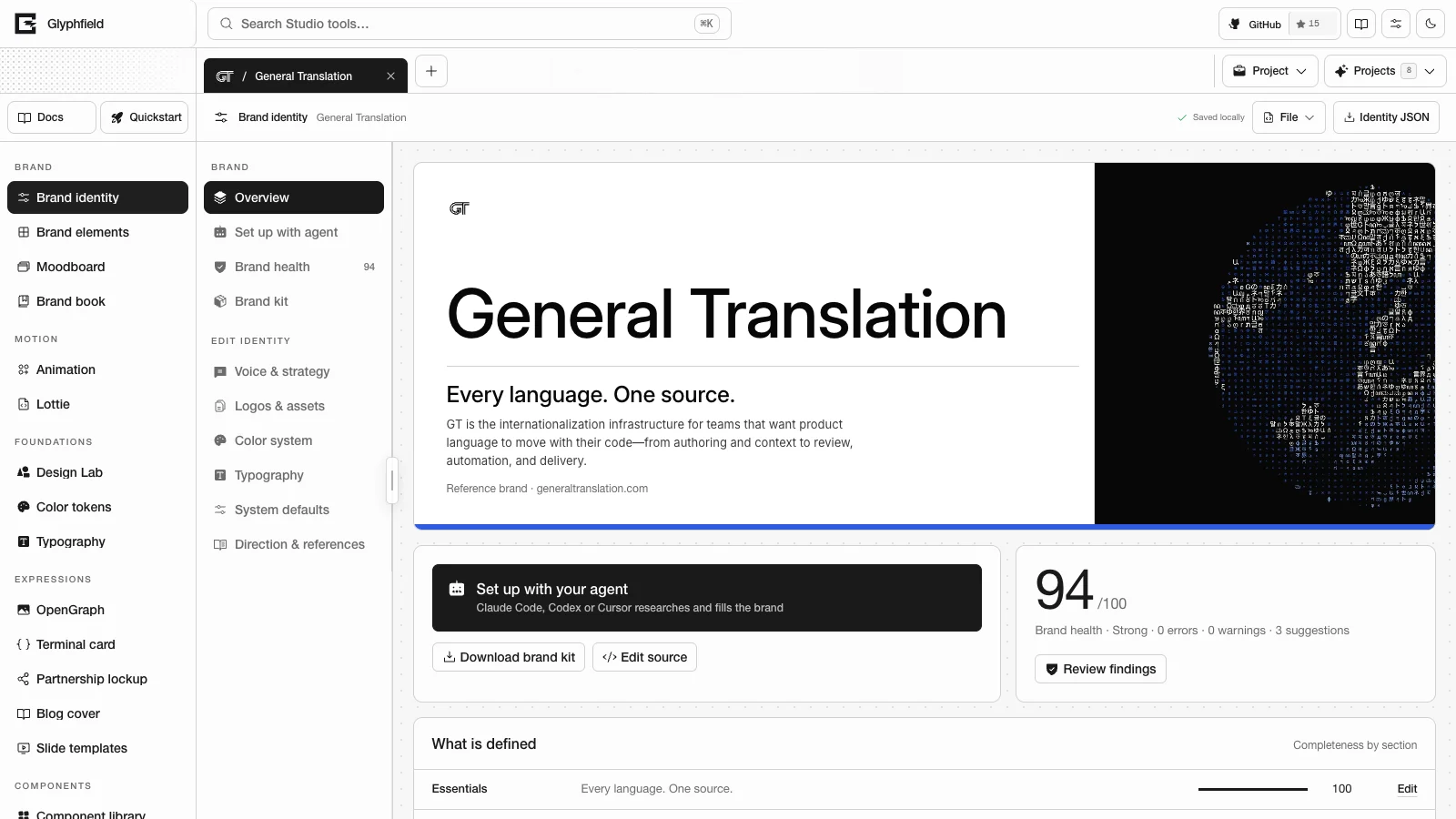
Interaction model
- Navigation, buttons, selects, fields, dialogs, drawers, tabs and layer actions have visible labels or accessible names.
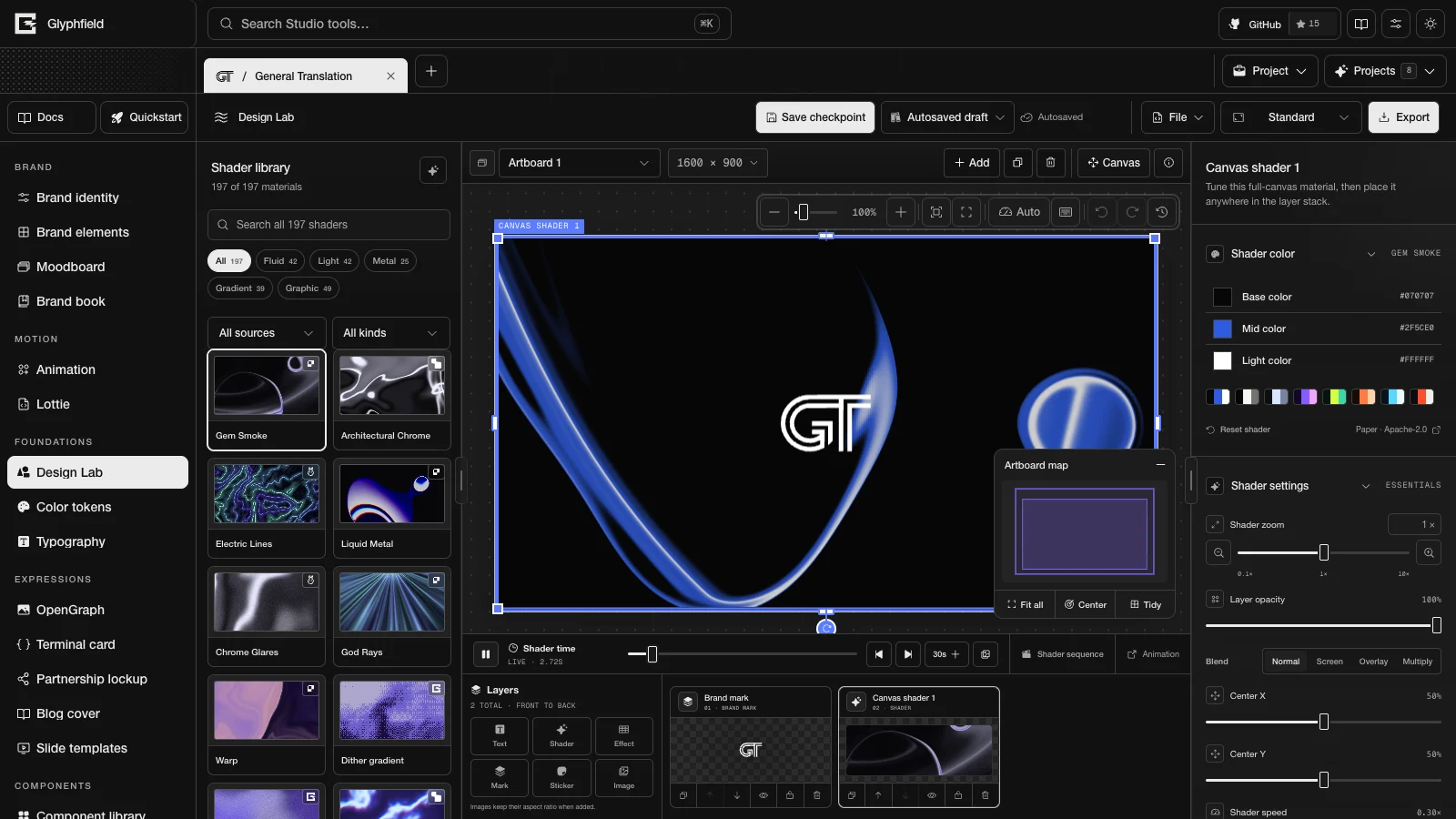
- Each canvas is paired with a layer list and an inspector, so geometry and appearance can be changed without pointer gestures.
- A selected canvas layer moves 1 px with the arrow keys and 10 px with Shift and an arrow key. Layer, artboard, project tab and canvas menus open from the keyboard with Shift + F10 or the ContextMenu key.
- Design Lab, the layered composition tool, lists its shortcuts in a sheet that opens with ?. Keyboard shortcuts lists every shortcut in the Studio and the documentation.
- Tools with editable source have a source drawer, opened with Code, for exact structured edits when direct manipulation is not enough.
- Tooltips in the Studio's Visual settings is on by default and names controls on hover and focus. Turning it off hides those hints.
Glyphfield has not completed a formal accessibility audit or certification. Use the guidance and checks on this page, and report any gap you find.
Keyboard workflow
- Open a tool from the Studio navigation or with Search Studio tools (⌘K).
- Tab through the library, the controls beside the canvas, the inspector and the layer list.
- Select a layer from the layer list when selecting it on the canvas is difficult.
- Use the arrow keys for small moves and the inspector fields for exact numbers.
- Open the source drawer with Code for exact source edits.
- Escape closes context menus and returns focus to the control that opened them.
Focus and labels
Studio components use semantic roles and accessible labels. The labels serve assistive technology and the Browser API (window.glyphfield.studio), which finds controls through controls() by the same names. A control without a label cannot be announced by a screen reader or addressed by an agent.
When adding or changing a control:
- Give every icon-only control an
aria-label. - Associate each form label with its input.
- Keep focus indicators visible on light and dark surfaces.
- Mark disabled state in the markup as well as visually.
- Show validation and export failures next to the operation that caused them.
- Trap focus only inside an intentional modal dialog.
Motion
The Studio follows the operating system's prefers-reduced-motion setting. Reduce motion in the Studio's Visual settings (the Visual customization button) pauses decorative effects in this browser regardless of the system setting. With either one on, tool and project switches, menus, popovers, Studio search and drawers change in a single frame instead of fading or sliding (Switching and motion has the details). While the operating system requests reduced motion, Design Lab's Auto preview quality stops measuring frame times. Live material previews pause on their own when they are offscreen or the page is hidden.
Exporting motion is an explicit action, so an exported file can still contain animation. When you publish it:
- Provide a still alternative.
- Avoid forced autoplay where the destination can respect
prefers-reduced-motion. - Add pause or stop controls for long or repeating motion.
- Avoid rapid flashes, and inspect the whole loop as well as the first frame.
- Provide captions or a transcript when the audio carries meaning.
Color and contrast
The landing page, the Studio and the documentation share one theme setting. Auto is the default and follows the operating system, including changes while the site is open. The theme is applied before the first paint, so the page does not flash while the editor or shaders load. Choosing Light or Dark overrides Auto across the site and in other open Glyphfield tabs. To follow the system again, set Theme to Auto in the Studio's Visual settings. The theme changes the interface and leaves your artwork unchanged. When browser storage is unavailable, the theme controls still work for the current page, but the choice may not survive a reload.
Glyphfield shows brand colors exactly as the identity defines them, including combinations that do not meet every destination's contrast needs. Check the artifact in context:
- Check text and essential marks against every shader frame they cross.
- Set explicit converter foreground and background colors instead of relying on transparency.
- Check focus and selected-state contrast in both Studio themes.
- Do not convey status with color alone.
A graphic can follow the brand and still be inaccessible for a specific use. The product that publishes it owns the final contrast requirement.
Images, video and documents
Exports do not include surrounding semantic HTML.
| Artifact | What the publisher provides |
|---|---|
| PNG, JPG, SVG | Short alternative text in the destination, or empty alt text for a decorative image |
| GIF | An equivalent still or a description, and no essential information that appears only briefly |
| MP4 | Captions or a transcript where relevant, playback controls and a reduced-motion alternative |
| A check of reading order, headings, links, color and selectable text in the final PDF from the browser | |
| Lottie | A fallback, an accessible name in the host interface and reduced-motion behavior |
| JSON source | Documentation of the schema and validation errors. Source does not replace the rendered artifact for readers |
Canvas limitations
A rendered canvas does not expose its pixels as a semantic document tree. The layer list, inspectors, source drawer, labels and keyboard commands are the accessible way to control it. The visual content still needs human review or an equivalent description.
When a task depends on visual judgment, such as alignment, contrast over animation, legibility or flashing in a loop, passing source validation is not enough.
Contributor checklist
Before shipping a Studio interaction:
- Reach it and operate it with the keyboard alone.
- Confirm that every control has a meaningful accessible name.
- Confirm that focus stays visible and returns to a predictable place after an overlay closes.
- Test with browser zoom and at narrow viewport widths.
- Test both themes and the reduced-motion setting.
- Confirm that status and error changes are exposed as text.
- Confirm that the matching Browser API control or action can still be discovered.
- Inspect the exported artifact for contrast, motion and media alternatives.
Shared editor components, Studio Browser API and Contributing cover the shared editing systems and the contribution process.
Browser support
Check which browser features the Glyphfield Studio needs for editing, saving, shaders, local files and exports, and what happens when one is missing.
Self-hosting
Install, build and deploy your own Glyphfield server with the right Node and pnpm versions, keep its dynamic routes working, and verify the deployment.