 Glyphfield
Browser-agent workflow
Operate the Glyphfield Studio from a browser-driving agent when the output depends on WebGL, Canvas, local files, visual placement, Lottie, GIF or MP4.
Some outputs can only be made in the browser, because they depend on browser graphics APIs or on interactive composition. An agent that drives a browser (for example with Playwright) reaches them through the Studio Browser API, window.glyphfield.studio.
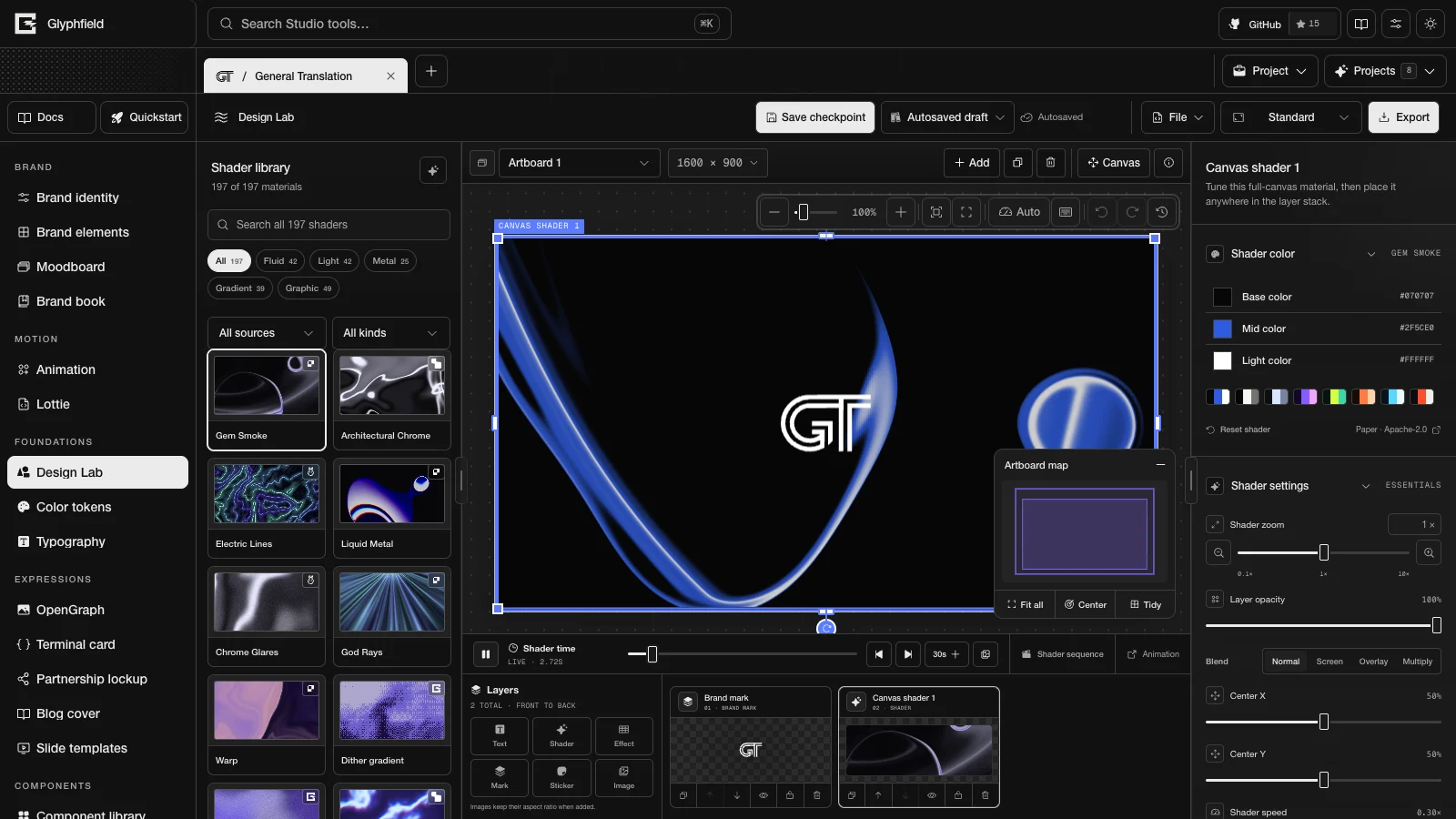
Browser-only work
- Moodboard PNG up to 4800 × 7200
- Animation GIF and MP4, with audio in MP4
- Design Lab live shaders, WebGPU image effects, stills, GIF, MP4 and shader sequences
- PNG and SVG from OpenGraph, Terminal card, Blog cover, Partnership lockup and Slide templates, and a PDF deck from Slide templates
- PNG and HTML email from Brand elements
- Lottie PNG frames, GIF, MP4, and edited JSON or
.lottiefiles - Local font, image, logo and shader inputs
- Visual placement, opacity, scale and zoom inspection
- Changes to the shared Brand identity, which every browser-local design reads
- Exact source edits to the active artifact
Procedure
- Read
/api/catalogand pick the exact toolid. - Open
/studio?tool=<id>&project=<project id>. Withoutproject, the Studio opens the last active project. - If the task needs a new brand project, create it with
identity.project.createin the Brand identity tool. - Wait for the
glyphfield:studio-api-readyevent, then calldescribe()andcontrols(). - Change settings by accessible label with
activate(label)andset(label, value), or edit the exact source withreadSource()andapplySource(). - Resolve any validation error before you continue. A rejected source leaves the document unchanged.
- Inspect the canvas at a zoom level where details are visible.
- Call the tool's export action and check the returned artifact.
API calls
// On /studio?tool=material
const studio = window.glyphfield.studio;
console.log(studio.describe(), studio.controls());

if (studio.activeTool() !== 'material') {
  throw new Error(`Expected Design Lab, received ${studio.activeTool()}`);
}

const current = JSON.parse(studio.readSource());
// Design Lab source is a CanvasDocument. The page background is the artboard background.
current.pages[current.pageIds[0]].background = '#111216';
await studio.applySource(current);

const artifact = await studio.invoke('design.export', {
  format: 'png',
  download: true,
});
The page dispatches glyphfield:studio-api-ready each time the active tool's adapter changes. Listen for it when automation starts before the Studio has loaded, and read window.glyphfield.studio again after every switch. The Browser API covers only the active tool's workspace, so it cannot click the Studio sidebar or the project tabs. To change tools, load a new /studio?tool= URL or click the sidebar with the browser driver.
Every adapter supports the standard actions controls.list, control.activate, control.set and artifact.download through invoke. Tools with source also support source.read and source.apply. describe() lists the additional actions of the active tool. An export action returns the artifact without saving it. Pass download: true where the action accepts it, or call studio.download(artifact) later.
Reliable interaction
- Use accessible labels from
controls()instead of screen coordinates. - Wait for imported images, fonts and shader previews to finish rendering.
- Inspect the canvas at 100% zoom before the final export.
- Check surfaces and logo reversal in both light and dark compositions.
- Treat a finished download as the success condition. For an export that only returns a Blob, require a non-empty Blob with the expected MIME type and file name.
- Inspect several motion frames, and check the seam when the loop must be seamless.
- Delete a project only when the user asks for it.
- Use the tool's source format for source edits. A source document is not a
/api/generaterequest.
Canvas and artboards
Design Lab has a free canvas for loose layers and any number of artboards. Only artboards export as images or motion.
design.workspace.describereturns{ activeSurface, canvas: { layerIds }, artboards }.design.workspace.activatetakes{ target }, wheretargetis'canvas'or an artboard ID. It sets the surface that the layer controls and the source API edit.design.workspace.movetakes{ target, layerIds, placement }and moves layers of the active surface. The default placement ispreserve, which keeps world-space boxes and text sizing.besideplaces the layers next to their source artboard when they move to the canvas. Layer IDs stay the same unless the destination already uses one, which happens after an artboard is duplicated. Read the source again after a move.design.workspace.frameSelectioncreates an artboard around the loose layers selected with the layer controls. It keeps their on-canvas scale and moves them into the new artboard.
The source format is CanvasDocument schema 2 with Design Lab metadata source version 4, and it also opens projects that have only artboards. metadata.designLab.workspace.canvas stores the loose layers separately from workspace.artboards. activeSurfaceId: 'canvas' means that the active page shows the loose layers. The canvas container has a fixed origin and size, and its layers can sit anywhere. Keep the container and its unknown fields as they are, and do not treat it as an artboard. An artboard's optional displayScale keeps the on-screen size of a frame created around a selection. It does not change export dimensions.
Image and motion exports need an active artboard and throw while the canvas is active. design.export.project packages every artboard and the loose canvas layers, with authorized image and font bytes and captured shader frames. The HTTP design-sequence contract has no workspace actions.
Persistence
Project identities, navigation, tabs and most tool drafts are stored in localStorage. Design Lab named designs, autosaves, converted assets and captured shader frames are stored in IndexedDB, and a small localStorage entry recovers an interrupted autosave. The Browser API reads and changes the same active project state. HTTP requests do not change projects, so pass a generated document to applySource to use it. See Storage and privacy.
API or browser
Prefer /api/generate when it can represent the artifact. Use the Browser API when the result needs visual judgment or browser rendering.
Brand setup with an agent
Let Claude Code, Codex or Cursor research a brand from its own sources, fill the complete identity, pass the health audit and export the brand kit.
API errors and limits
Read the structured errors from the generation and brand APIs, stay within the request limits, and handle Browser API exceptions without unsafe retries.